Buttons
Button

Every Button gets the JetPack chrome: a light gradient slab with a drop shadow, a white top-left highlight and embossed dark text. Hover lightens it, pressing darkens it, and disabled buttons turn flat grey.
<Button Content="Save" />
<Button Content="Save" IsEnabled="False" />
Variants
| Style | Look |
|---|---|
(implicit) / JetPack.Styles.Button | light grey, dark text |
JetPack.Styles.Button.Accent | the current accent; follows ThemeManager.ChangeAccent |
JetPack.Styles.Button.Green | the original GreenButton, always green |
JetPack.Styles.Button.Orange | the original OrangeButton, always orange (good for destructive actions) |
JetPack.Styles.Button.Blue | the original BlueButton, always blue |
JetPack.Styles.Button.Square | 24×22 icon button, no padding |
JetPack.Styles.Button.Flat | no chrome until hovered; used for tool bars |
JetPack.Styles.Button.Link | looks like a hyperlink in the accent link colour |
<Button Content="Update" Style="{StaticResource JetPack.Styles.Button.Accent}" />
<Button Content="Delete" Style="{StaticResource JetPack.Styles.Button.Orange}" />
<Button Style="{StaticResource JetPack.Styles.Button.Square}" ToolTip="Notifications">
    <Path Width="12" Height="12" Stretch="Uniform" Fill="#FF404040" Data="..." />
</Button>
Custom colours
The button template reads its brushes from ControlHelper attached properties, so a new colour is a style with five setters:
<Style x:Key="PurpleButton" TargetType="Button" BasedOn="{StaticResource JetPack.Styles.Button}">
    <Setter Property="Foreground" Value="White" />
    <Setter Property="Background" Value="#FF7D3C98" />
    <Setter Property="jp:ControlHelper.MouseOverBackground" Value="#FF9150AD" />
    <Setter Property="jp:ControlHelper.PressedBackground" Value="#FF5E2D73" />
    <Setter Property="jp:ControlHelper.HighlightBrush" Value="#FFB07CC6" />
    <Setter Property="jp:ControlHelper.ContentEffect" Value="{x:Null}" />
</Style>
ControlHelper.CornerRadius (default 2) rounds the corners.
ToggleButton and RepeatButton

ToggleButton uses the same chrome; when checked it looks pressed into the surface (light grey with an inner shadow). RepeatButton looks like Button.
Hyperlink
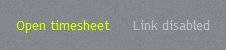
Hyperlink inside a TextBlock uses the accent link colour (bright lime for green) and underlines on hover. Disabled links turn 45% white.
<TextBlock><Hyperlink Click="OnOpen">Open timesheet</Hyperlink></TextBlock>
SplitButton
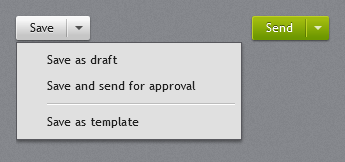
jp:SplitButton is a Button with a separate arrow part. Clicking the main part raises Click; clicking the arrow opens Menu below the button.
<jp:SplitButton Content="Save" Click="OnSave">
    <jp:SplitButton.Menu>
        <ContextMenu>
            <MenuItem Header="Save as draft" />
            <MenuItem Header="Save and send for approval" />
        </ContextMenu>
    </jp:SplitButton.Menu>
</jp:SplitButton>
JetPack.Styles.SplitButton.Accent gives the accent colour.
DropDownButton
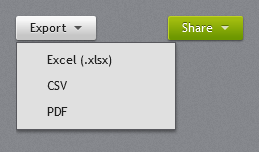
jp:DropDownButton opens its Menu when clicked (it still raises Click). The menu is at least as wide as the button. JetPack.Styles.DropDownButton.Accent gives the accent colour.
<jp:DropDownButton Content="Export">
    <jp:DropDownButton.Menu>
        <ContextMenu>
            <MenuItem Header="Excel (.xlsx)" />
            <MenuItem Header="PDF" />
        </ContextMenu>
    </jp:DropDownButton.Menu>
</jp:DropDownButton>
Tile
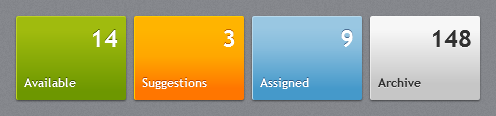
jp:Tile is a 110×84 button with a large count in the top-right corner and a title bottom-left. Content, if any, is centred.
<jp:Tile Title="Available" Count="14" Style="{StaticResource JetPack.Styles.Tile.Green}" Click="OnAvailable" />
| Property | Type | Description |
|---|---|---|
Title | string | Bottom-left label. |
Count | object | Large top-right value. |
Styles: JetPack.Styles.Tile (light, the default), .Accent, .Green, .Orange, .Blue.
Badged
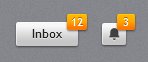
jp:Badged puts a small orange count badge on the top-right corner of any element:
<jp:Badged Badge="12">
    <Button Content="Inbox" />
</jp:Badged>
| Property | Type | Default | Description |
|---|---|---|---|
Badge | object | null | Badge content; the badge is hidden when null. |
BadgeBackground | Brush | orange button gradient |