Sample apps
Two small applications in samples/ show how the controls fit together in a real screen layout. They contain no back end: each page is a UserControl in Views/ with fixed sample data from SampleData.cs, so the XAML can be read on its own.
dotnet run --project samples/JetPack.Wpf.Samples.Admin
dotnet run --project samples/JetPack.Wpf.Samples.Portal
Both use the same structure:
| File | Contents |
|---|---|
App.xaml | Merges JetPack.xaml and defines a few page styles (Page.Title, Page.Toolbar, Form.Label, …). |
MainWindow.xaml | The shell: JetPackWindow with window commands, the navigation and a StatusBar. |
Views/*.xaml | One UserControl per page. |
SampleData.cs | Records and static lists the pages bind to. |
Pages move to another page with NavigationCommands.GoToPage and the page name as CommandParameter; the window handles the command. A tile on the dashboard is just <jp:Tile Command="NavigationCommands.GoToPage" CommandParameter="Timesheets" ... />.
Administration app (HamburgerMenu)
JetPack.Wpf.Samples.Admin is a back-office app for a staffing company with the navigation in a HamburgerMenu on the left. Each HamburgerMenuItem holds its page in Tag, and the menu’s content area shows the selected one:
<jp:HamburgerMenu PaneWidth="190" SelectedIndex="0"
                  Content="{Binding SelectedItem.Tag, RelativeSource={RelativeSource Self}}">
    <jp:HamburgerMenuItem Content="Dashboard">
        <jp:HamburgerMenuItem.Icon>
            <Path Style="{StaticResource Navigation.Icon}" Data="{StaticResource Icon.Dashboard}" />
        </jp:HamburgerMenuItem.Icon>
        <jp:HamburgerMenuItem.Tag>
            <v:DashboardView />
        </jp:HamburgerMenuItem.Tag>
    </jp:HamburgerMenuItem>
    ...
</jp:HamburgerMenu>
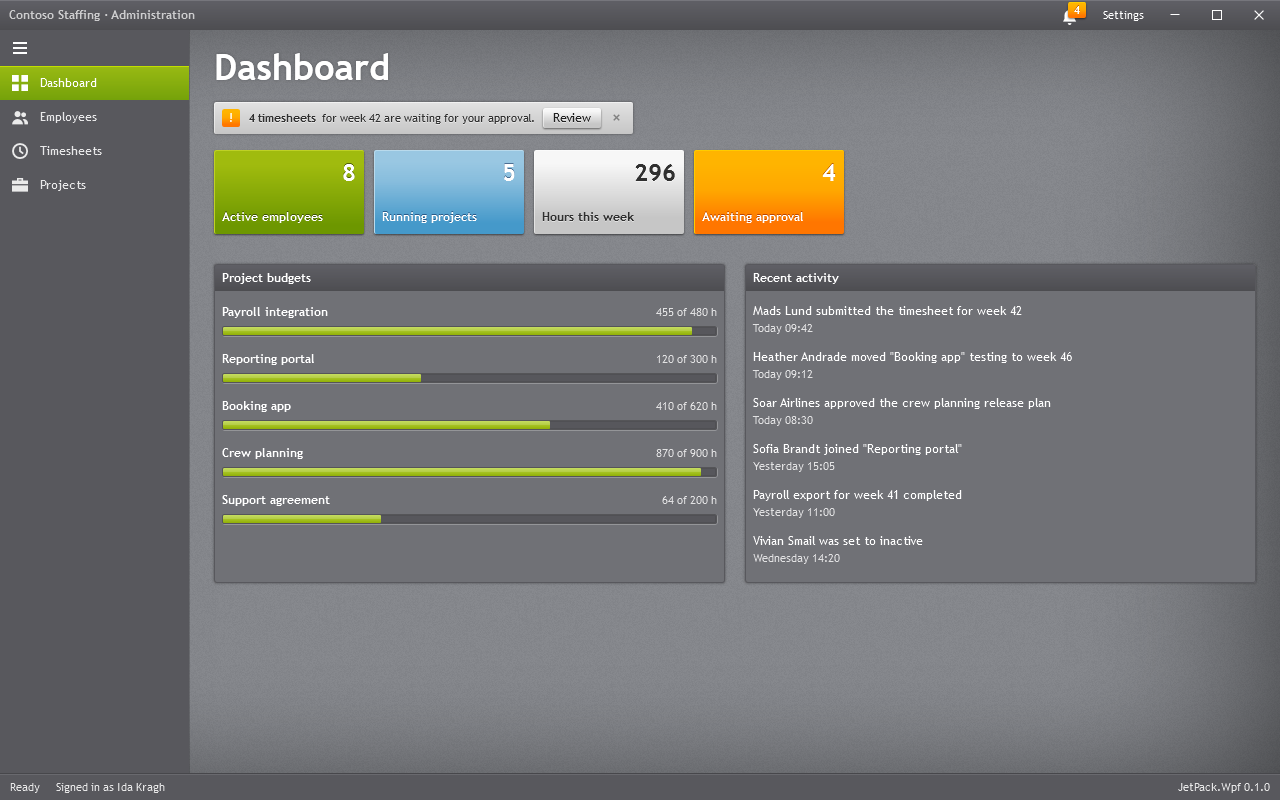
Dashboard: InfoBar with an action button, Tiles that open other pages, and two GroupBoxes with project budgets (ProgressBar) and recent activity.
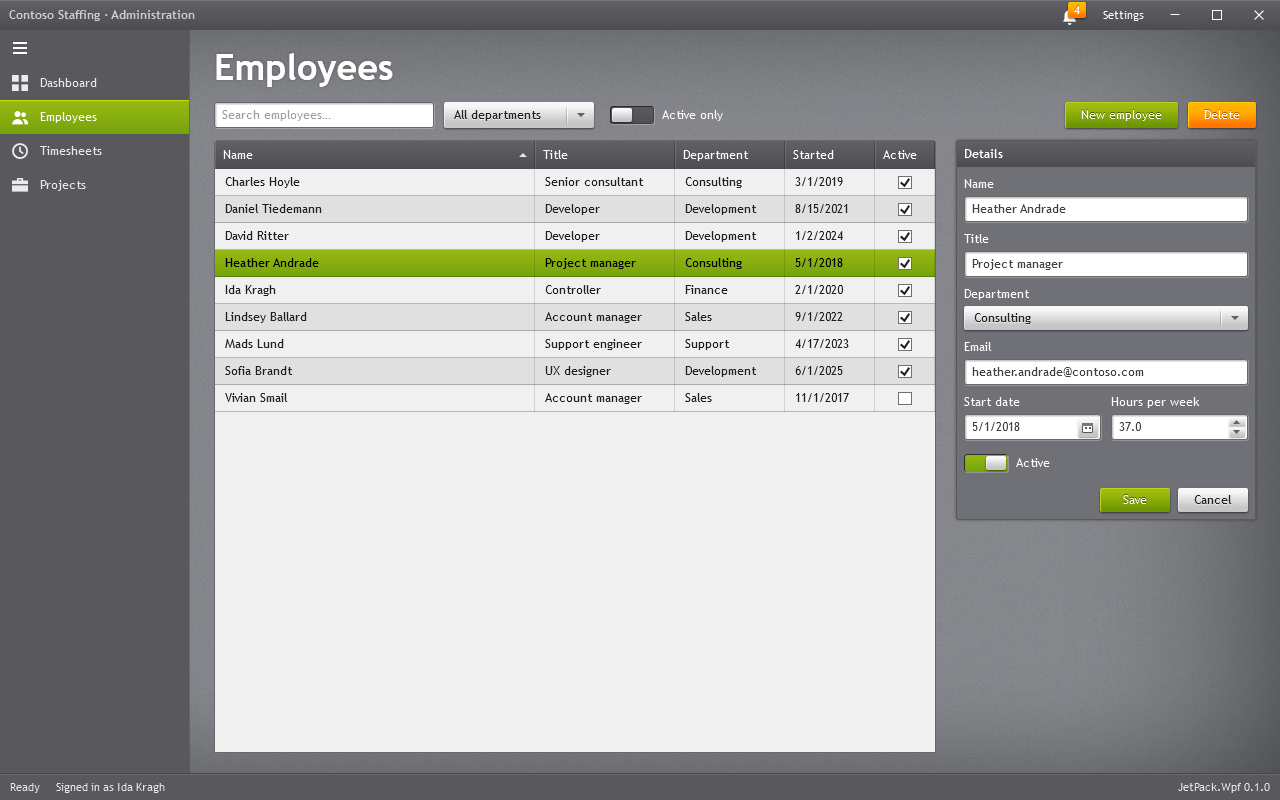
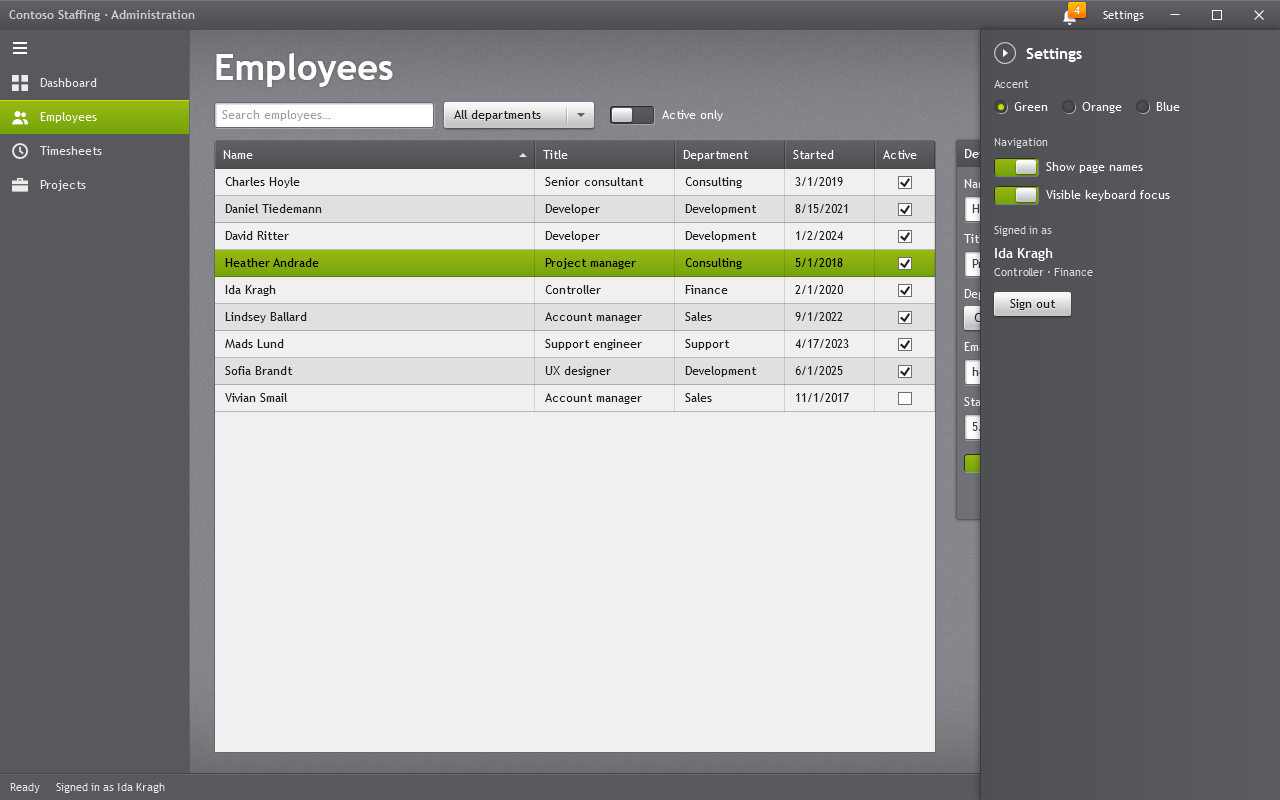
Employees: a filter bar (TextBox with watermark and clear button, ComboBox, ToggleSwitch) over a DataGrid; the details form beside it binds to the selected row (Label, TextBox, ComboBox, DatePicker, NumericUpDown, ToggleSwitch). The filter is a plain ICollectionView filter in the code-behind.
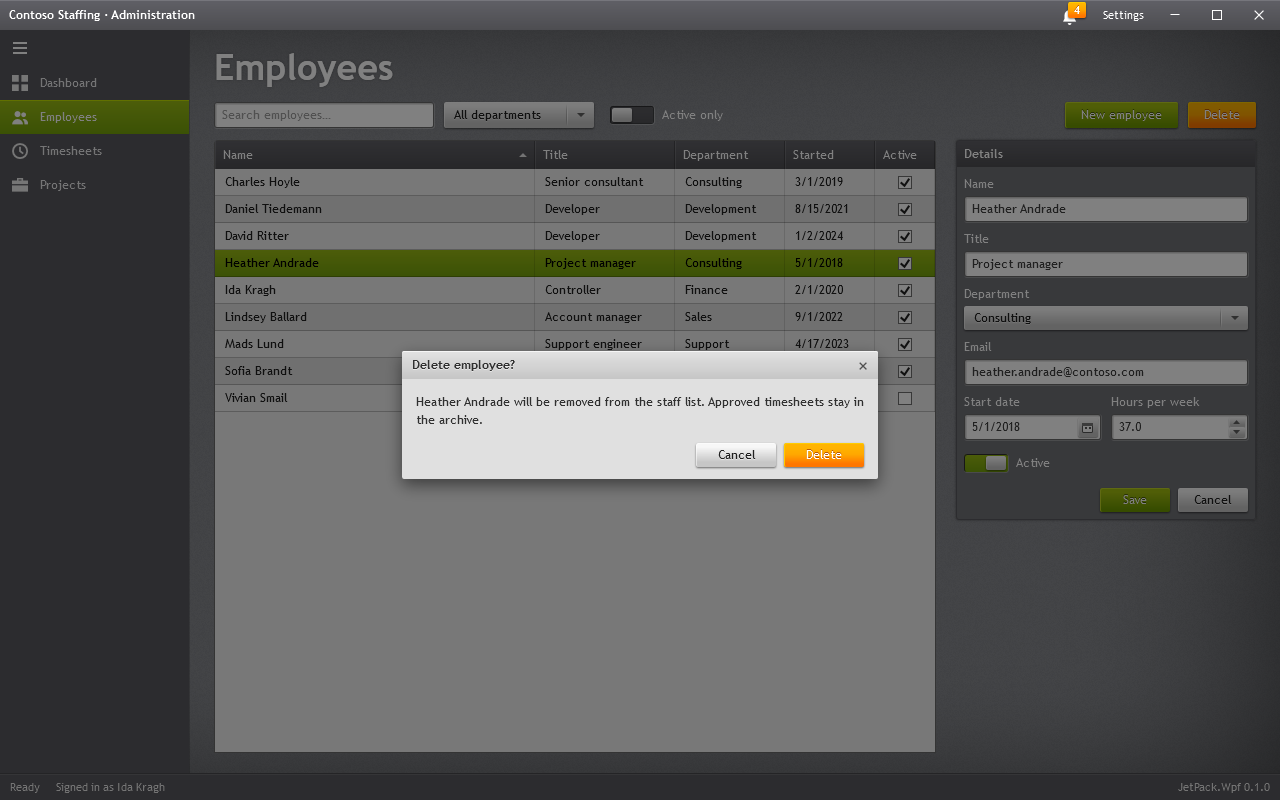
Delete asks with a JetPackDialog that has an orange confirm button:
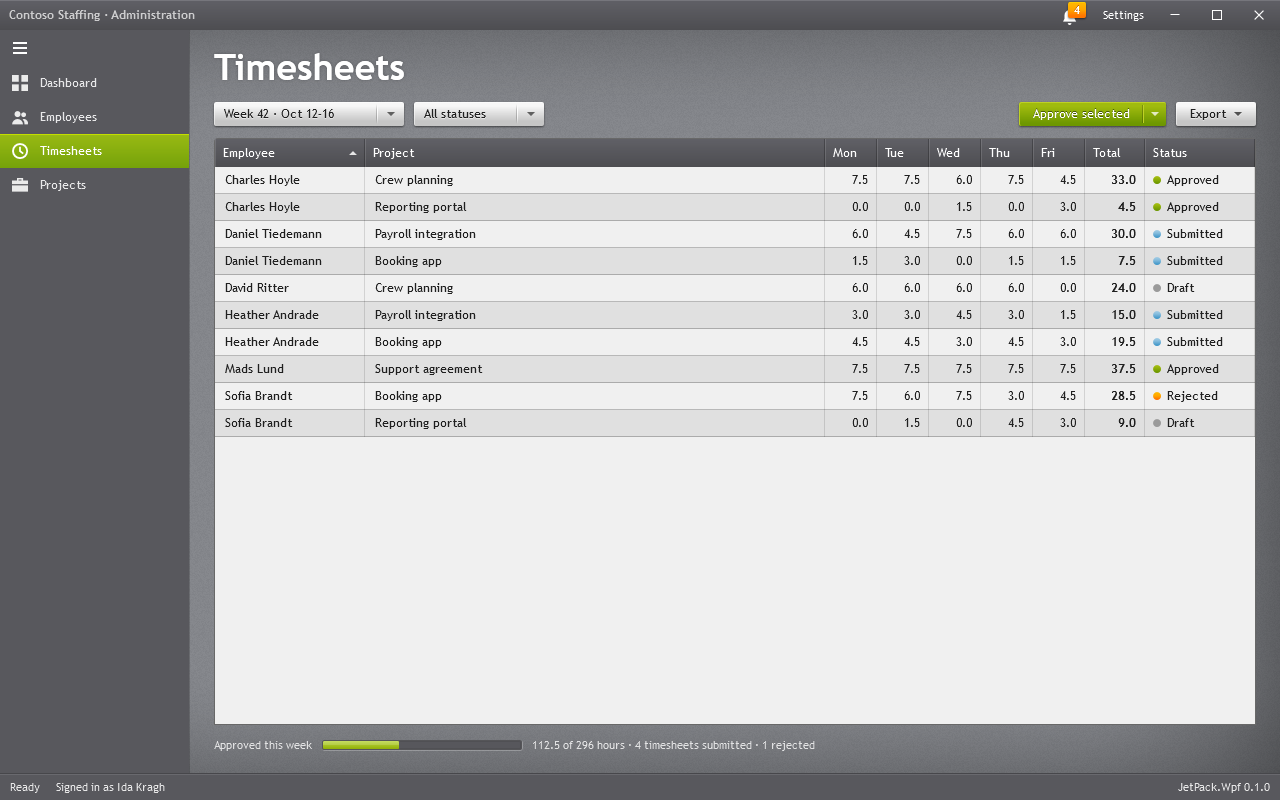
Timesheets: week and status ComboBoxes, a SplitButton and a DropDownButton with menus, a read-only DataGrid with a status column built from a DataTemplate, and a summary line.
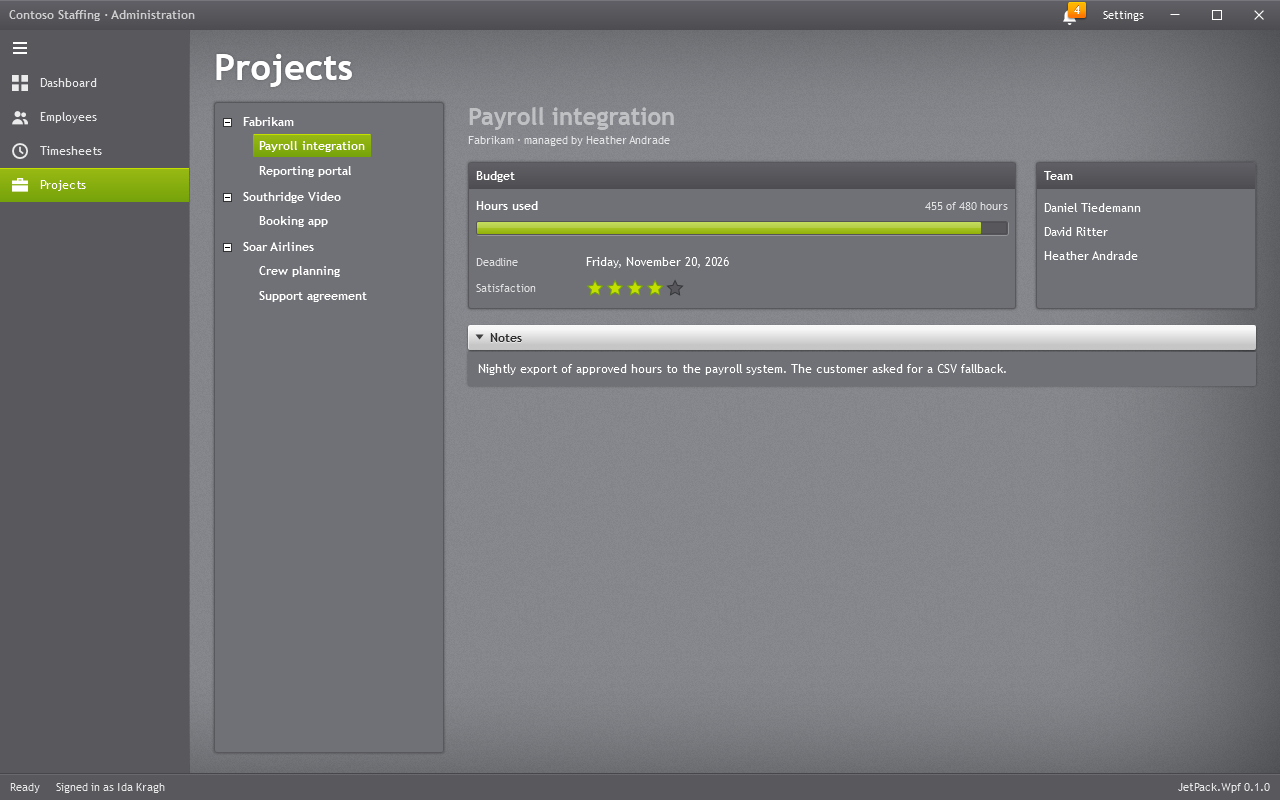
Projects: a TreeView of customers and projects. The right side is a ContentControl bound to the tree’s SelectedItem; implicit DataTemplates show a customer (ListView) or a project (GroupBox, ProgressBar, Rating, Expander).
The title bar has a Badged notification button and a Settings button that opens a Flyout with the accent, the navigation pane width (bound to HamburgerMenu.IsPaneOpen) and focus visuals.
Sales portal (navigation bar)
JetPack.Wpf.Samples.Portal follows the Silverlight navigation application template: the light navigation bar (JetPack.Styles.TabControl.Navigation) runs edge to edge under the title bar, with the brand in its Tag, and every tab holds one page.
<TabControl x:Name="Pages" Style="{StaticResource JetPack.Styles.TabControl.Navigation}">
    <TabControl.Tag>
        <TextBlock FontSize="20" FontWeight="Bold" Text="Northwind" Margin="0,0,16,0" />
    </TabControl.Tag>
    <TabItem Header="Home"><v:HomeView /></TabItem>
    <TabItem Header="Products"><v:ProductsView /></TabItem>
    ...
</TabControl>
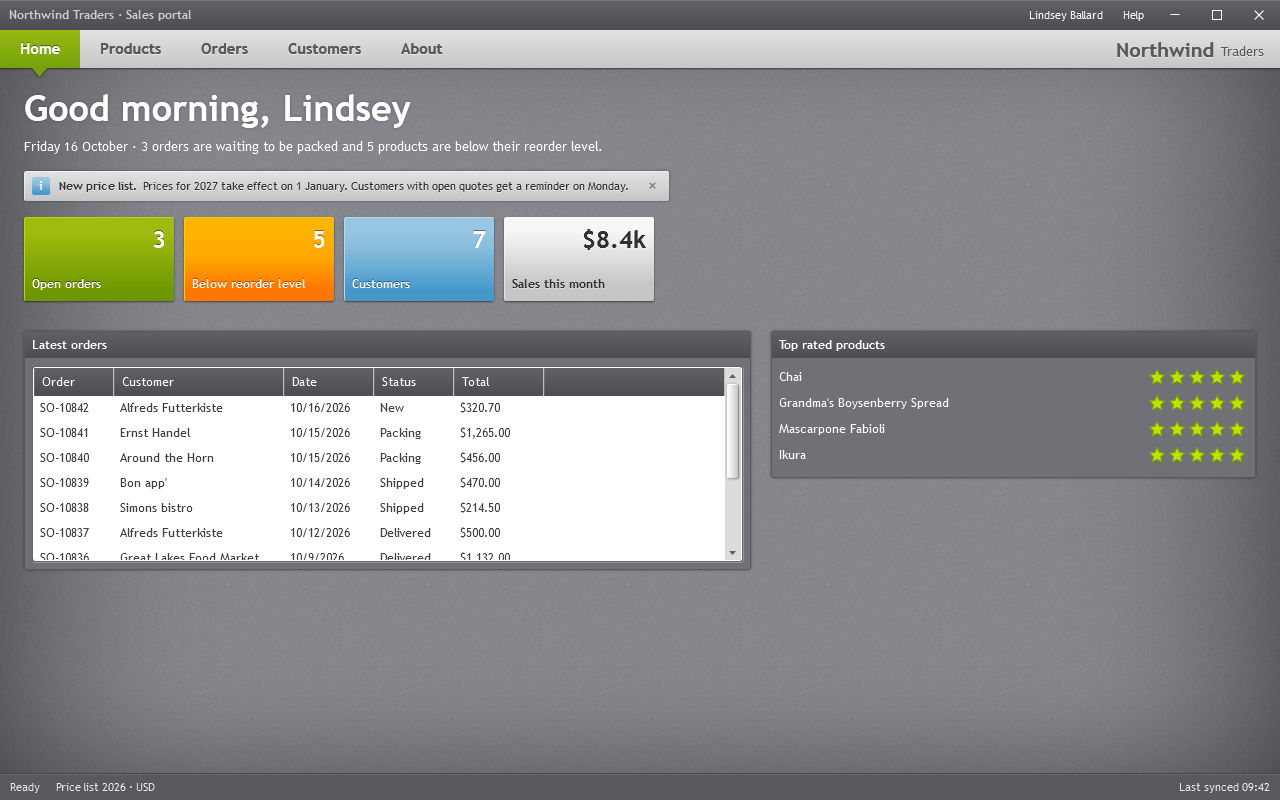
Home: a greeting, an InfoBar, Tiles and two GroupBoxes with a ListView and read-only Ratings.
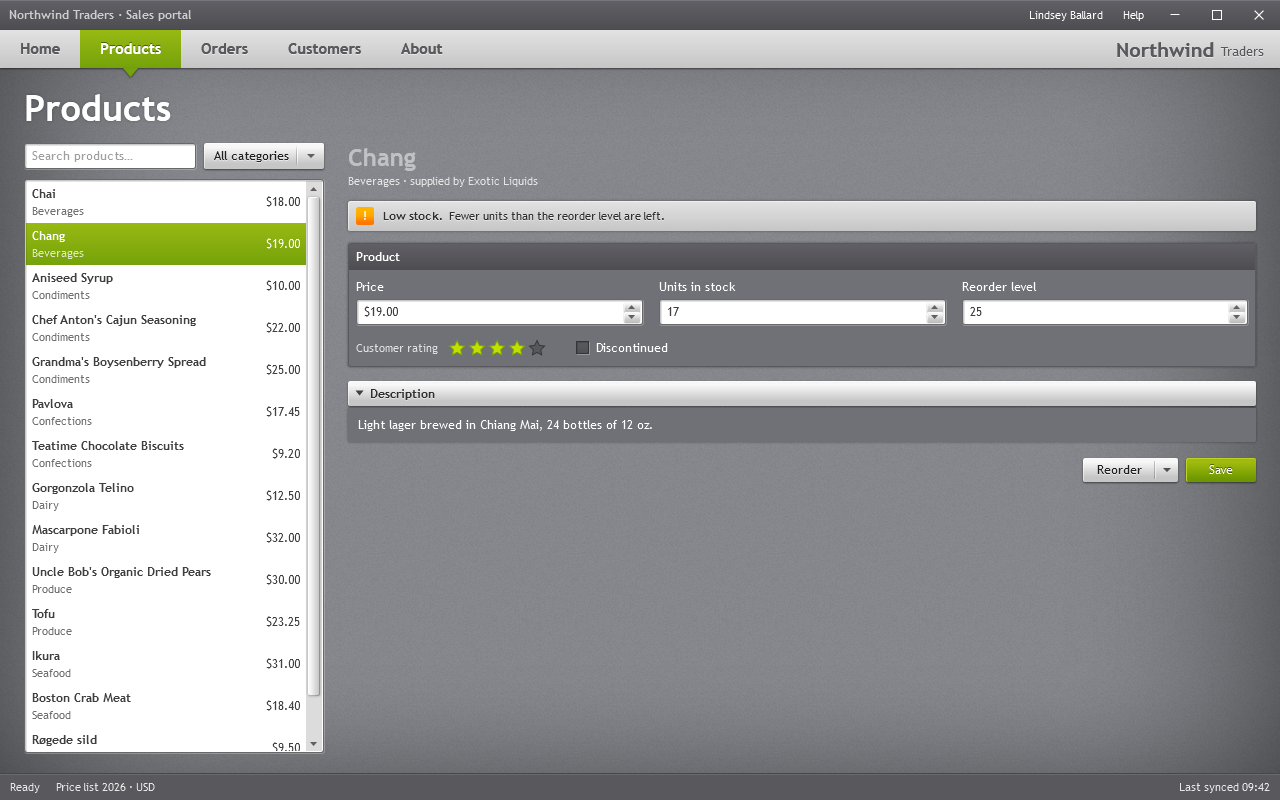
Products: search and category filter over a ListBox with an item template; the details show a low-stock InfoBar, NumericUpDowns, Rating, CheckBox, an Expander and a SplitButton.
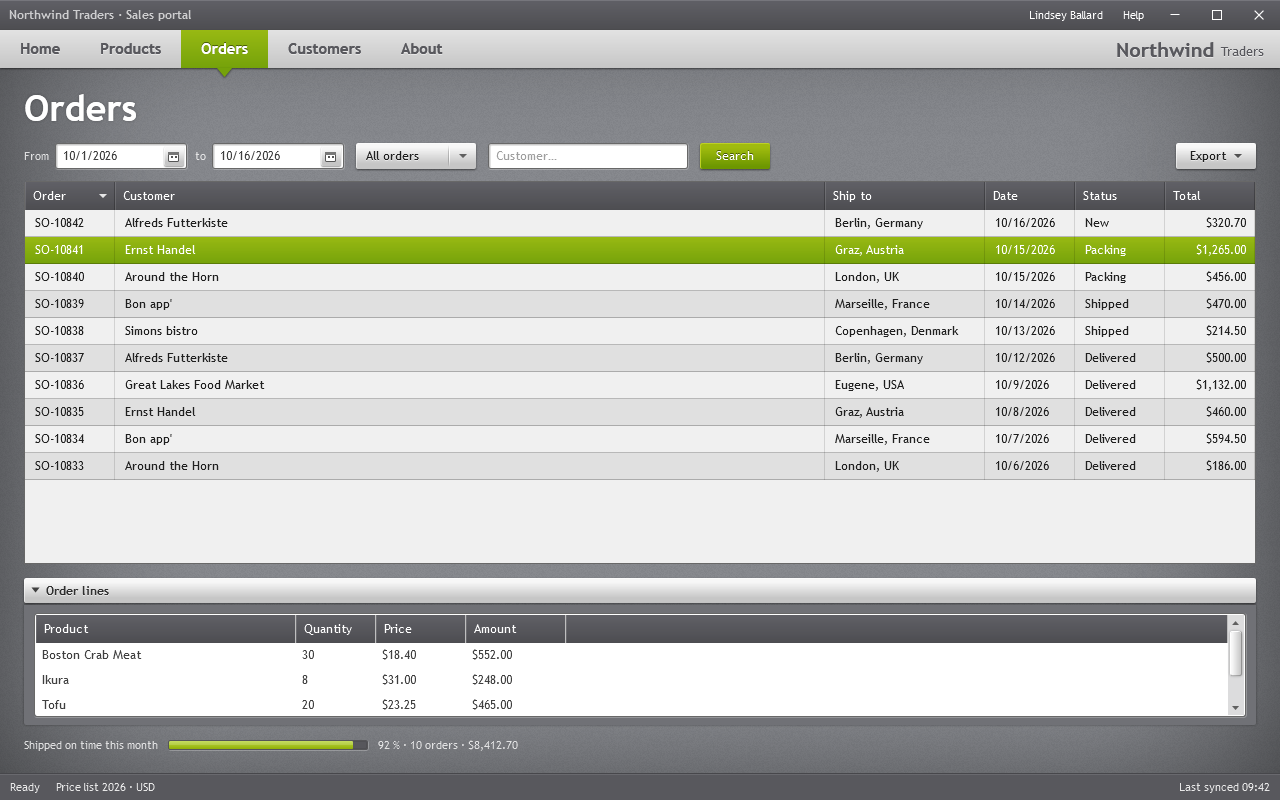
Orders: a filter bar with DatePickers, ComboBox and AutoSuggestBox, a DataGrid of orders and an Expander with the lines of the selected order in a ListView.
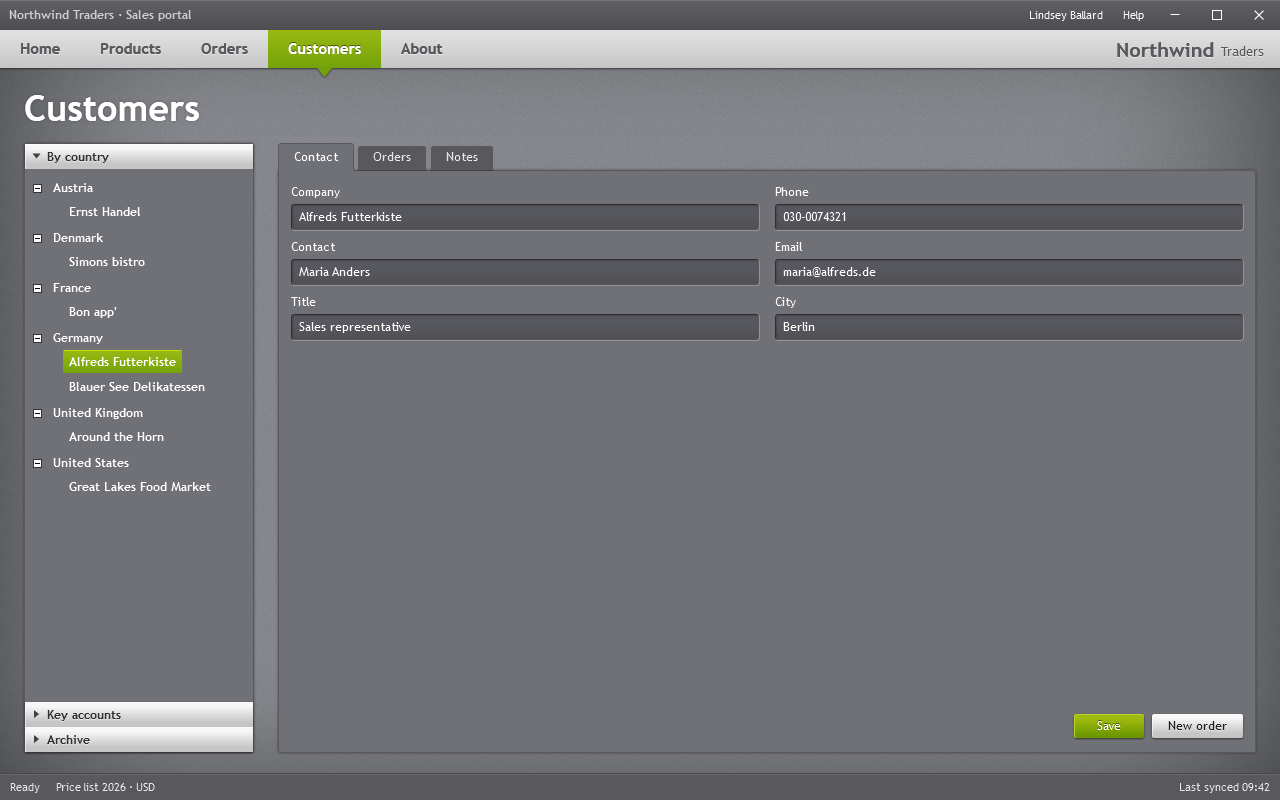
Customers: the “Companies” screen of the original template: an Accordion with a TreeView, and a panel TabControl with dark text boxes for the selected customer.
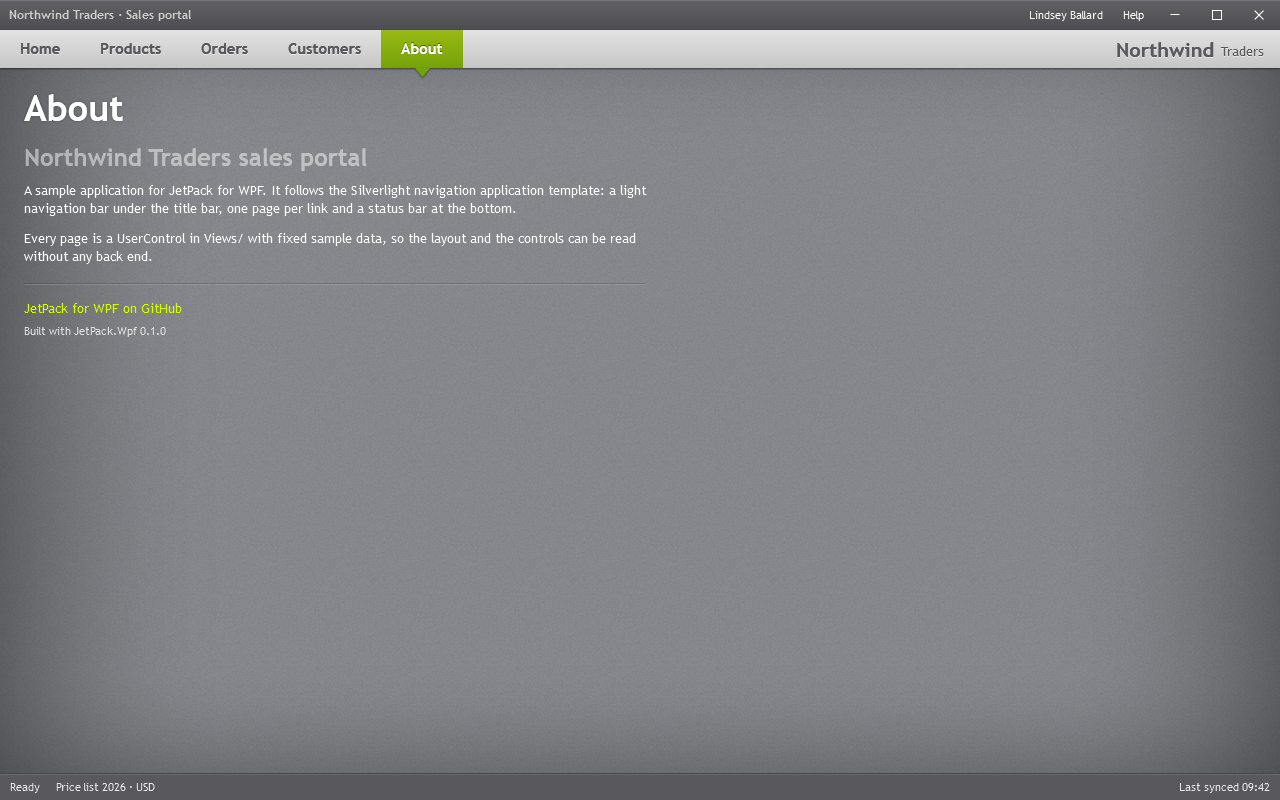
About: heading styles, body text, a Separator and a Hyperlink.
Screenshots
Both apps accept --snapshot <folder>: they render every page to PNG and exit. The pictures on this page were made that way.