Text and input
TextBox
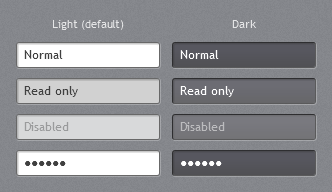
A white field with a 1px border, an inner shadow along the top and left edges and a faint highlight along the bottom and right. Read-only fields get a light grey overlay; disabled fields fade. When the field has keyboard focus its border turns the accent colour (see focus visuals).
<TextBox Text="Contoso Corporation" />
<TextBox Text="Read only" IsReadOnly="True" />
Dark variant
The original theme browser showed every input in a “White” and a “Dark Gray” version:
<TextBox Style="{StaticResource JetPack.Styles.TextBox.Dark}" Text="Normal" />
<PasswordBox Style="{StaticResource JetPack.Styles.PasswordBox.Dark}" />
Multi-line
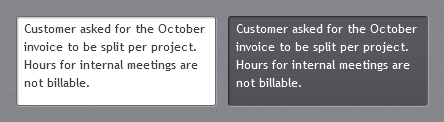
JetPack.Styles.TextBox.MultiLine (and .MultiLine.Dark) set AcceptsReturn, wrapping, top alignment and a vertical scroll bar:
<TextBox Style="{StaticResource JetPack.Styles.TextBox.MultiLine.Dark}" Height="170" Text="Notes..." />
Watermark and clear button
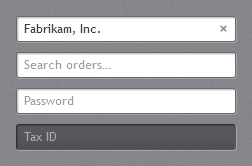
TextBoxHelper works on TextBox, PasswordBox and editable ComboBox:
<TextBox jp:TextBoxHelper.Watermark="Search orders…" jp:TextBoxHelper.ClearTextButton="True" />
<PasswordBox jp:TextBoxHelper.Watermark="Password" />
| Attached property | Type | Description |
|---|---|---|
TextBoxHelper.Watermark | string | Grey hint shown while the field is empty. |
TextBoxHelper.ClearTextButton | bool | Shows a small × while the field has text; clicking it clears the field. |
TextBoxHelper.HasText | bool (read-only) | True when the field has text; useful in your own triggers. |
The clear button runs TextBoxHelper.ClearTextCommand, which you can also bind to your own buttons inside a text box template.
Text context menu
Text boxes get a JetPack-styled cut / copy / paste / select-all menu (JetPack.ContextMenu.Text).
PasswordBox and RichTextBox
PasswordBox matches TextBox, including watermark and clear button. RichTextBox gets the same frame without the watermark.
Label
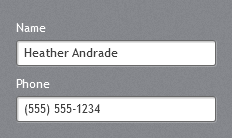
White text in the control font size, with access-key support:
<Label Content="_Name" Target="{Binding ElementName=NameBox}" />
<TextBox x:Name="NameBox" />
Validation
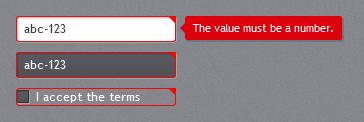
Invalid inputs get a red frame with the folded red corner from the original theme. While the input has focus, a red call-out to its right shows the first error message. This is JetPack.Templates.ValidationError, set as Validation.ErrorTemplate on every input style, so normal WPF validation (ValidatesOnDataErrors, INotifyDataErrorInfo, validation rules) just works:
<TextBox Text="{Binding Phone, ValidatesOnNotifyDataErrors=True, UpdateSourceTrigger=PropertyChanged}" />
ComboBox
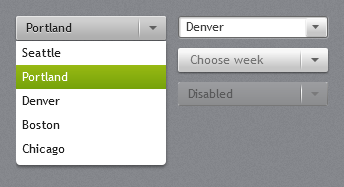
The closed combo box is one raised button with a separator and an arrow; the drop-down is white with the accent on the selected item.
<ComboBox SelectedIndex="0">
    <ComboBoxItem Content="Seattle" />
    <ComboBoxItem Content="Portland" />
</ComboBox>
IsEditable="True"switches to a white field with a small drop button.jp:TextBoxHelper.Watermarkshows a hint while nothing is selected.MaxDropDownHeightdefaults to 260.
NumericUpDown
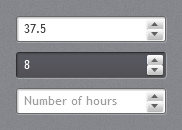
jp:NumericUpDown is a number field with stacked up/down buttons. The arrow keys and the mouse wheel (while focused) step the value; Enter or leaving the field commits typed text.
<jp:NumericUpDown Value="{Binding Hours}" Minimum="0" Maximum="60" Interval="0.5" StringFormat="N1" />
<jp:NumericUpDown Value="8" Style="{StaticResource JetPack.Styles.NumericUpDown.Dark}" />
| Property | Type | Default | Description |
|---|---|---|---|
Value | double? | null | Two-way bindable; clamped to the range; empty text sets null. |
Minimum, Maximum | double | MinValue, MaxValue | |
Interval | double | 1 | Step for buttons, arrow keys and wheel. |
StringFormat | string | G | .NET numeric format, e.g. N1, C, 0.00. |
IsReadOnly | bool | false | Also disables the buttons. |
HideUpDownButtons | bool | false |
Event: ValueChanged (RoutedPropertyChangedEventHandler<double?>). Typed text is parsed with the current culture; separators and other characters are ignored.
AutoSuggestBox
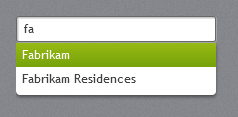
jp:AutoSuggestBox suggests entries from ItemsSource that contain the typed text (case insensitive). Down/Up move through the suggestions, Enter or a click picks one, Escape closes the list.
<jp:AutoSuggestBox ItemsSource="{Binding CompanyNames}" Text="{Binding Company}"
                   jp:TextBoxHelper.Watermark="Search companies…" SuggestionChosen="OnChosen" />
| Property | Type | Default | Description |
|---|---|---|---|
Text | string | "" | Two-way bindable. |
ItemsSource | IEnumerable | null | Items are matched on ToString(). |
MaxSuggestions | int | 8 |
Event: SuggestionChosen; e.OriginalSource is the chosen item.
SearchComboBox
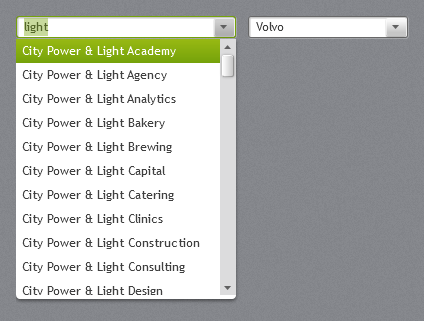
jp:SearchComboBox combines a combo box with type-ahead search, for long lists such as companies or car brands. Open it and click an item, or type to filter the list and complete the word. The drop-down is virtualized, so lists with thousands of items stay fast.
<jp:SearchComboBox ItemsSource="{Binding Companies}" DisplayMemberPath="Name"
                   SelectedValuePath="Id" SelectedValue="{Binding CompanyId}"
                   jp:TextBoxHelper.Watermark="Search companies…" />
<jp:SearchComboBox ItemsSource="{Binding CarBrands}" SelectedItem="{Binding Brand}" FilterMode="StartsWith" />
- Focusing the box (or typing) opens the list. With no typed text it shows every item, with the selected one highlighted.
- Typing filters the list (
ContainsorStartsWith, ignoring case) and highlights the first item that starts with the text. The rest of that item is filled in and selected, so the next key replaces it. Backspace and Delete remove text without completing it again. - Down/Up and PageDown/PageUp move the highlight and show it in the box; Down, Alt+Down or F4 open a closed list.
- Enter, Tab or a click picks the highlighted item. Tab then moves on to the next control as usual.
- Escape closes the list and puts back the selected item’s text.
- Leaving the box keeps the highlighted item. Text that matches nothing snaps back to the selected item; an empty box clears the selection.
| Property | Type | Default | Description |
|---|---|---|---|
ItemsSource | IEnumerable | null | INotifyCollectionChanged sources are followed. |
SelectedItem | object | null | Two-way bindable. |
SelectedValue | object | null | Two-way bindable; the SelectedValuePath member of the selected item. |
SelectedValuePath | string | "" | Without a path, SelectedValue is the item itself. |
DisplayMemberPath | string | "" | Text shown, matched and completed (ToString() when empty); dotted paths work. |
ItemTemplate | DataTemplate | null | Template for the drop-down items; the box still shows DisplayMemberPath. |
FilterMode | SearchFilterMode | Contains | Contains or StartsWith. |
IsFilteringEnabled | bool | true | When false, typing only highlights and completes; the list keeps every item. |
IsAutoCompleteEnabled | bool | true | Fills in the rest of the first matching item. |
OpenOnFocus | bool | true | |
IsDropDownOpen | bool | false | |
MaxDropDownHeight | double | 260 | |
NoMatchesText | string | No matches | Shown in the drop-down when nothing matches. |
Text | string | "" | Read-only: the text in the box. |
Display texts are read once when ItemsSource or DisplayMemberPath changes (or the collection raises CollectionChanged), so filtering only compares strings.
DatePicker
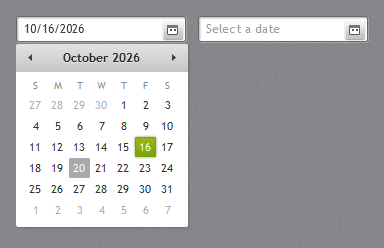
A text box with a calendar button; the drop-down uses the JetPack Calendar. Date format, month names and the first day of the week follow the app’s culture. The watermark (“Select a date”) comes from WPF and is English.
<DatePicker SelectedDate="{Binding StartDate}" />
TimePicker
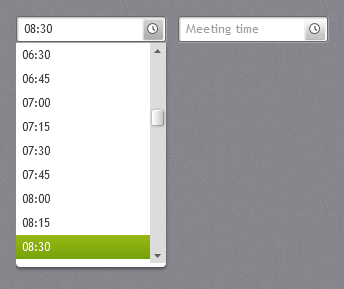
jp:TimePicker takes typed times (8:30, 8.30, 8) and offers a drop-down list in MinuteStep steps. Times show as 24-hour HH:mm.
<jp:TimePicker SelectedTime="{Binding MeetingTime}" MinuteStep="30" jp:TextBoxHelper.Watermark="Meeting time" />
| Property | Type | Default |
|---|---|---|
SelectedTime | TimeSpan? | null |
MinuteStep | int | 15 |
IsDropDownOpen | bool | false |
ColorPicker
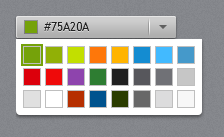
jp:ColorPicker looks like a combo box showing the colour and its hex value; the drop-down is a grid of swatches.
<jp:ColorPicker SelectedColor="{Binding TagColor}" />
| Property | Type | Default | Description |
|---|---|---|---|
SelectedColor | Color | #75A20A | Two-way bindable. |
Palette | IEnumerable of Color | 24 theme colours (ColorPicker.DefaultPalette) | |
IsDropDownOpen | bool | false |
Combined with ThemeManager.ChangeAccent(color) it lets users pick their own accent (the demo does this under Settings).
Composite inputs and dark styles
NumericUpDown, TimePicker and AutoSuggestBox host a normal TextBox. Its style comes from jp:ControlHelper.InputStyle, so any of them can use the dark field:
<jp:TimePicker jp:ControlHelper.InputStyle="{StaticResource JetPack.Styles.TextBox.Dark}" />