Lists and data
ListBox
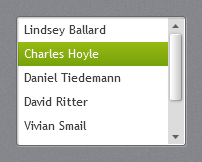
A white list with the same inset frame as text boxes. Hovered items get a light grey band; the selected item gets the accent selection gradient with white text.
<ListBox ItemsSource="{Binding Consultants}" DisplayMemberPath="Name" Height="170" />
Items have Padding="6,3" and stretch horizontally. Virtualisation is on (CanContentScroll), except while grouping.
ListView with GridView
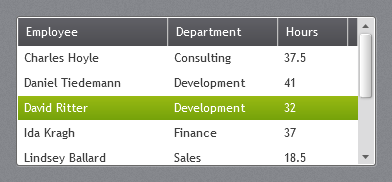
ListView looks like ListBox; with a GridView the column headers use the dark data grid header gradient.
<ListView ItemsSource="{Binding Timesheets}">
    <ListView.View>
        <GridView>
            <GridViewColumn Header="Employee" DisplayMemberBinding="{Binding Employee}" Width="150" />
            <GridViewColumn Header="Hours" DisplayMemberBinding="{Binding Hours}" Width="70" />
        </GridView>
    </ListView.View>
</ListView>
TreeView
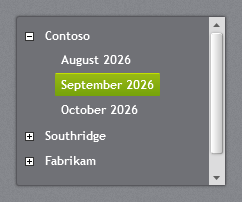
A dark panel (#707176) with bold white items, the white +/− expander boxes of the original and the accent gradient with a highlight line on the selected item.
<TreeView ItemsSource="{Binding Companies}">
    <TreeView.ItemTemplate>
        <HierarchicalDataTemplate ItemsSource="{Binding Months}">
            <TextBlock Text="{Binding Name}" />
        </HierarchicalDataTemplate>
    </TreeView.ItemTemplate>
</TreeView>
Inside another dark panel (such as an accordion section) set Background="Transparent" and BorderThickness="0" so the tree blends in, as the Window page of the demo does.
DataGrid
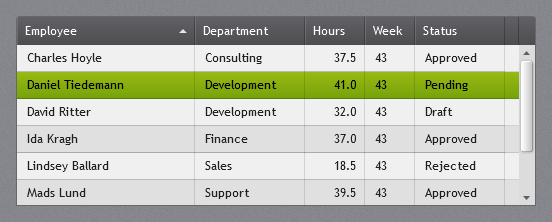
The dark gradient header with a sort arrow, a light grey body with alternating rows and faint grid lines, a light hover band and the accent gradient on the selected row.
<DataGrid ItemsSource="{Binding Timesheets}" AutoGenerateColumns="False" IsReadOnly="True">
    <DataGrid.Columns>
        <DataGridTextColumn Header="Employee" Binding="{Binding Employee}" Width="*" />
        <DataGridTextColumn Header="Hours" Binding="{Binding Hours, StringFormat=N1}" Width="60" />
    </DataGrid.Columns>
</DataGrid>
Defaults set by the theme: HeadersVisibility="Column", GridLinesVisibility="All", AlternatingRowBackground = JetPack.Brushes.DataGrid.AlternatingRow, row header width 14 (when row headers are shown). With SelectionUnit="Cell" the selected cells get the accent instead of the row. Behaviour (sorting, editing, adding rows) is plain WPF.
JetPackGrid
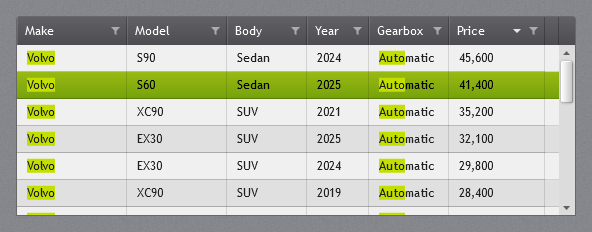
jp:JetPackGrid is a DataGrid for large collections (thousands of rows, tens of columns) that people need to narrow down. It adds:
- Search:
SearchTextholds words that must all be found in a row, in any searchable column (ignoring case). Every hit is marked in the cells. Quotes keep a phrase together:volvo "dark blue" automatic. - Value filter per column: the funnel in a header opens a box for values the column must equal. A row passes if it matches any of the values, and every filtered column must pass.
- Three-state sorting: clicking a header sorts ascending, then descending, then back to the source order. Shift+click sorts by more columns, as in DataGrid.
- Grouping by one member (
GroupMemberPath), with a header row per group that folds up. - Paging (
PageSize): with more rows than that, the grid shows one page at a time and a pager below the rows. - Virtualization of rows and columns, kept on while grouping.
- Read-only by default, with no new-item row and no auto-generated columns.
<TextBox x:Name="Search" jp:TextBoxHelper.Watermark="Search, e.g. volvo estate automatic" jp:TextBoxHelper.ClearTextButton="True" />

<jp:JetPackGrid ItemsSource="{Binding Cars}" SelectedItem="{Binding SelectedCar}"
                SearchText="{Binding Text, ElementName=Search}" GroupMemberPath="{Binding GroupBy}"
                Filtered="OnFiltered" SelectedItemChanged="OnSelectedCarChanged">
    <jp:JetPackGrid.Columns>
        <jp:JetPackGridColumn Header="Make" Binding="{Binding Make}" Width="100" />
        <jp:JetPackGridColumn Header="Body" Binding="{Binding Body}" Width="85" FilterText="estate suv" />
        <jp:JetPackGridColumn Header="Mileage" Binding="{Binding Mileage, StringFormat=N0}" Width="90" IsSearchable="False" />
        <DataGridCheckBoxColumn Header="Sold" Binding="{Binding IsSold}" jp:JetPackGrid.IsFilterable="False" />
    </jp:JetPackGrid.Columns>
</jp:JetPackGrid>
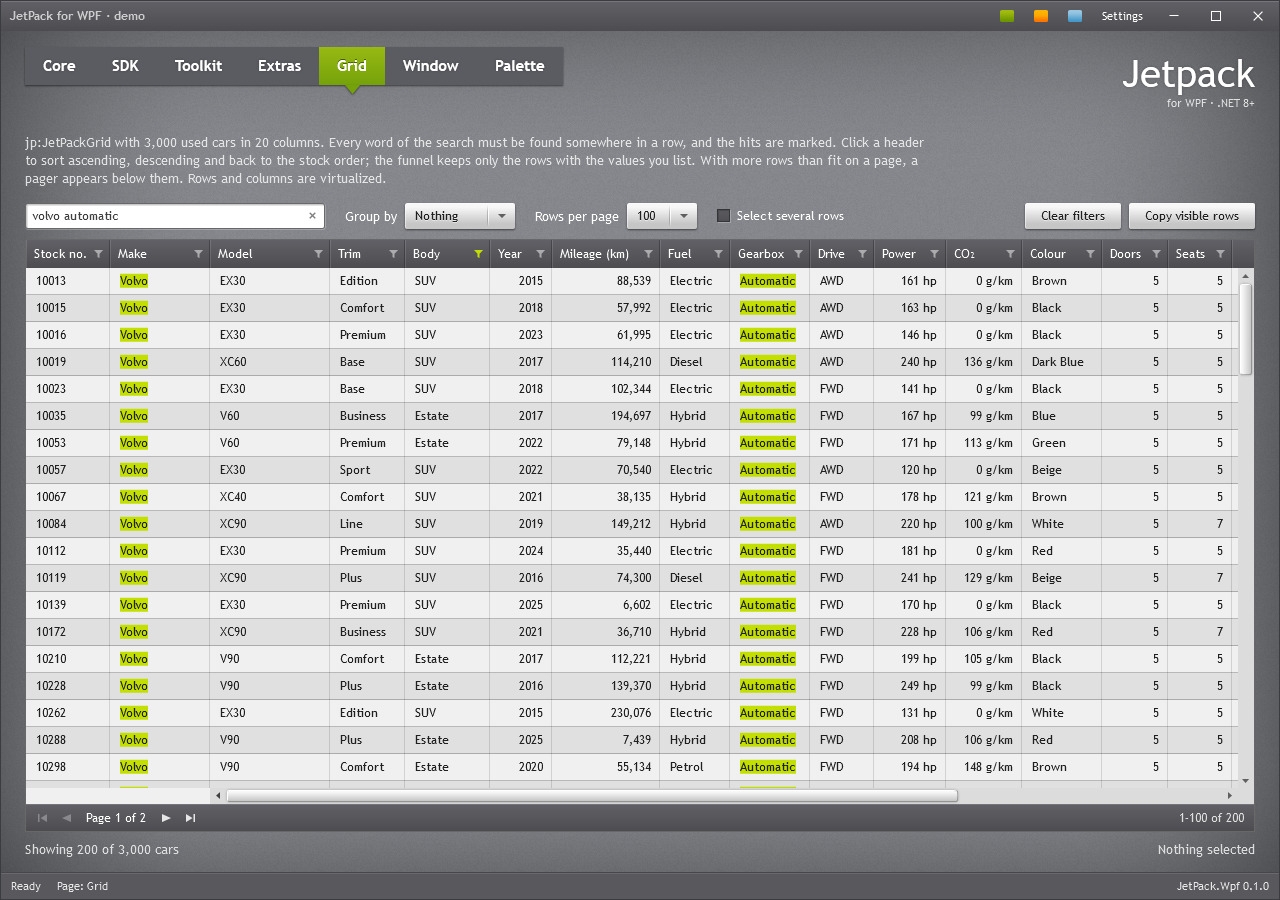
The demo’s Grid page shows 3,000 cars in 20 columns, searched for volvo automatic with the Body column filtered to estate suv:
Header filter
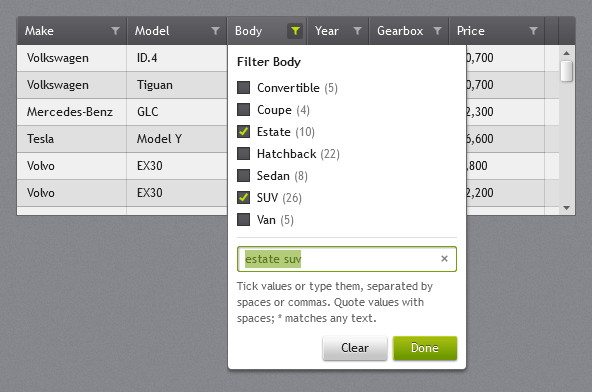
When the box opens, the grid reads the column’s values from every row in the source. If there are at most FilterListLimit different values (20 by default), they are listed with their row counts so you can tick them. This suits columns such as fuel type or body type. A column with more values, such as model or stock number, only gets the text box. The list and the text follow each other:
- Ticking a value writes it into the text.
- Typing a value ticks it.
- Typed values that are not in the list, such as
vol*, stay in the text.
Type values separated by spaces, commas or semicolons, for example estate, suv. The values are matched like this:
- A value matches when the cell’s text equals it, ignoring case.
"land rover": quotes keep a value that contains spaces together.vol*,*tronand*olv*: a*matches any text, so these match text that starts with, ends with or contains the value.*alone matches any cell that is not empty.
The rows are filtered while you type. Enter, Escape or Done closes the box, and Clear empties it. A funnel turns accent-coloured while its column has a filter. Code can set the filter through FilterText on the column, which is two-way bindable.
Groups
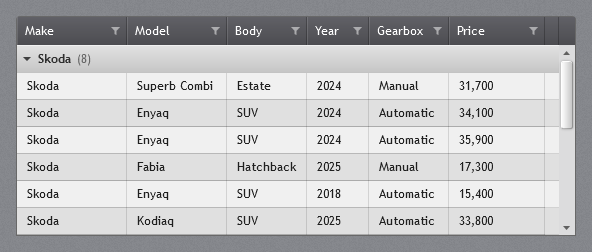
Set GroupMemberPath to group the rows. The default group header shows the value and the row count, and a click folds the group. A GroupStyle of your own replaces it. The default one is JetPack.GroupStyles.JetPackGrid.
Paging
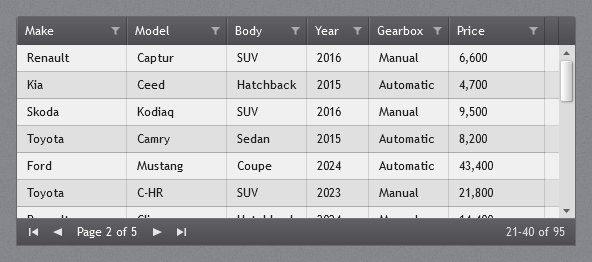
Set PageSize to the number of rows per page. The pager appears only when more rows than that pass the search and the filters, so a short result shows no pager. It has buttons for the first, previous, next and last page, the page number, and which rows the page holds (21–40 of 95).
<jp:JetPackGrid ItemsSource="{Binding Cars}" PageSize="100" PageIndex="{Binding CarPage}" />
- Sorting and grouping apply to all rows, not just the page. The pages are then cut from the sorted rows, and a group can continue on the next page.
- A new search, filter or sort goes back to the first page. Rows added to or removed from the source keep the current page.
FilteredItemCount, theFilteredevent andGetVisibleItems()count and return the rows of every page.- A row selected on one page is deselected when another page is shown.
- Paging needs an
ItemsSource, and a view that can filter, soDataViewrows are not paged.
Paging shortens the list, but each scroll step costs the same as without it. The cost comes from the rows and cells on screen, not from the number of rows in the source.
Grid properties
| Property | Type | Default | Description |
|---|---|---|---|
SearchText | string | "" | Two-way bindable. Words separated by spaces; each must be found in the row. |
SearchDelay | TimeSpan | 300 ms | Debounce: the rows are filtered once the search or a filter has not changed for this long, not on every key. Zero filters at once. |
SearchWords | IReadOnlyList<string> | empty | Read-only: the words the rows are filtered by and the cells mark. |
FilterListLimit | int | 20 | A header filter lists the values to tick when the column has at most this many different values; 0 never lists them. |
GroupMemberPath | string | null | Member to group by; empty for no groups. |
HighlightBrush | Brush | JetPack.Brushes.Accent.Highlight | Background of the search hits. |
HighlightForeground | Brush | JetPack.Brushes.Control.Foreground | Text colour of the search hits. |
FilteredItemCount | int | 0 | Read-only: rows left after the search and filters. |
TotalItemCount | int | 0 | Read-only: rows in the source. |
IsFiltered | bool | false | Read-only: true while a search or a filter is applied. |
PageSize | int | 0 | Rows per page; 0 shows every row. |
PageIndex | int | 0 | Two-way bindable: the page shown, from 0. |
PageCount | int | 1 | Read-only: number of pages; 1 when not paging. |
IsPaging | bool | false | Read-only: true when there is more than one page; the pager is shown then. |
PageNumber | int | 1 | Read-only: the page shown, from 1, for display. |
PageFirstRow, PageLastRow | int | 0 | Read-only: numbers (from 1) of the first and last row on the page, among the rows that pass the filters. |
Everything else is DataGrid: SelectedItem (two-way), SelectionMode (Single or Extended), CanUserResizeColumns, FrozenColumnCount, IsReadOnly and so on.
Column settings
jp:JetPackGridColumn is a DataGridTextColumn that also marks the search hits. These settings are properties on it, and attached properties (jp:JetPackGrid.IsFilterable="False") on any other DataGrid column:
| Property | Type | Default | Description |
|---|---|---|---|
IsSearchable | bool | true | Whether the search looks in this column. |
IsFilterable | bool | true | Whether the header shows the funnel. |
FilterText | string | "" | The values of the header filter; two-way bindable. |
FilterMemberPath | string | null | Member the search and filter read instead of the binding. |
HasFilter | bool | false | Read-only: true when FilterText holds a value. |
FilterOptions | IReadOnlyList<GridFilterOption> | null | Read-only: the values in the tick list, read when the filter box opens. null when the column has more than FilterListLimit values. Each GridFilterOption has Text, Count and IsChecked. |
The search and the filter compare the text the cell shows. They read the column’s Binding, including its StringFormat and Converter. A column without a binding (such as a DataGridTemplateColumn) uses FilterMemberPath or SortMemberPath. Paths can be dotted (Owner.Name), but indexers are not followed. Only JetPackGridColumn cells mark the hits; other columns are still searched.
Events and methods
| Member | Description |
|---|---|
Filtered event | After the rows have been filtered. The GridFilteredEventArgs give the rows left (e.Count) and in all (e.TotalCount). |
SelectedItemChanged event | When SelectedItem changes. Unlike SelectionChanged, it is not raised by combo boxes inside cells. |
GetVisibleItems() | The rows left after the search and filters, in the order shown (sorted, grouped), for example to export them. With paging, the rows of every page. |
ClearFilters() | Clears the search and every column filter. |
ApplyFilters() | Filters at once instead of after SearchDelay, and goes back to the first page. Also re-reads values that changed in the items. |
ClearFilterCommand | Routed command. With a column as parameter it clears that column’s filter; without one it clears everything. Use CommandTarget to point a button outside the grid at it. |
FirstPageCommand, PreviousPageCommand, NextPageCommand, LastPageCommand | Routed commands the pager uses; they can also drive a pager of your own (with CommandTarget). |
Notes:
- The filter works on the collection’s default view, like DataGrid sorting does. Two grids bound to the same list therefore share their filter. Give each grid its own list or
CollectionViewSource. - A row is filtered when it is added or when the search or a filter changes. A value that changes later in an item does not move the row until the next change, or until you call
ApplyFilters(). DataTableviews (BindingListCollectionView) cannot filter by predicate, so aDataViewis not filtered. Convert the rows to objects first.
Calendar
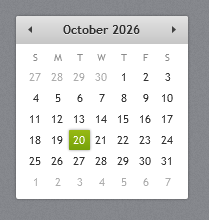
A white card with a light grey header strip, the month and arrows in it, small grey day names, today in grey and the selected date in the accent gradient. Month and year views use the same look.
<Calendar SelectedDate="{Binding Day}" />
Month and day names and the first day of the week follow the app’s culture. WPF formats with en-US unless you override FrameworkElement.LanguageProperty at startup:
FrameworkElement.LanguageProperty.OverrideMetadata(typeof(FrameworkElement),
    new FrameworkPropertyMetadata(XmlLanguage.GetLanguage(CultureInfo.CurrentCulture.IetfLanguageTag)));
ScrollViewer and ScrollBar
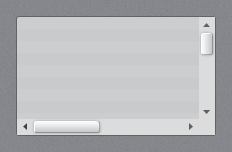
Scroll bars are 16px with a light grey track, small grey arrows and the light gradient thumb with a white top edge from the original theme. All ScrollViewers, including the ones inside text boxes and lists, use them.
Thin scroll bars
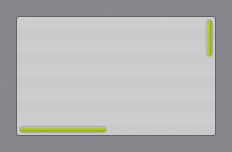
JetPack.Styles.ScrollViewer.Thin is a modern alternative: a slim rounded thumb in the accent gradient with a soft shadow, no arrows and no track. The bars lie over the content instead of taking space beside it. They are 12px wide to grab, the thumb is 5px and grows to 8px with a faint track under the mouse. They fade in when the content scrolls or the mouse moves over the scroll viewer, and fade out again after ScrollViewerHelper.AutoHideDelay (1.5 seconds) without activity. They stay while the mouse is on a bar or a thumb is being dragged. The demo uses it for its pages.
<ScrollViewer Style="{StaticResource JetPack.Styles.ScrollViewer.Thin}"
              jp:ScrollViewerHelper.AutoHideDelay="0:0:3">
    ...
</ScrollViewer>
Set jp:ScrollViewerHelper.AutoHide="False" to keep the bars visible. To use the thin bars everywhere, add an implicit style after the JetPack dictionary:
<Style TargetType="ScrollViewer" BasedOn="{StaticResource JetPack.Styles.ScrollViewer.Thin}" />
The bars cover the whole scroll viewer, padding included, so a right Padding of 12 keeps a free lane for them when content runs to the edge (the demo pages use Padding="0,22,12,0"). The ScrollBar style alone is JetPack.Styles.ScrollBar.Thin. The implicit style also reaches the scroll viewers inside list and text box templates; DataGrid and JetPackGrid keep their own.