Theme and accent
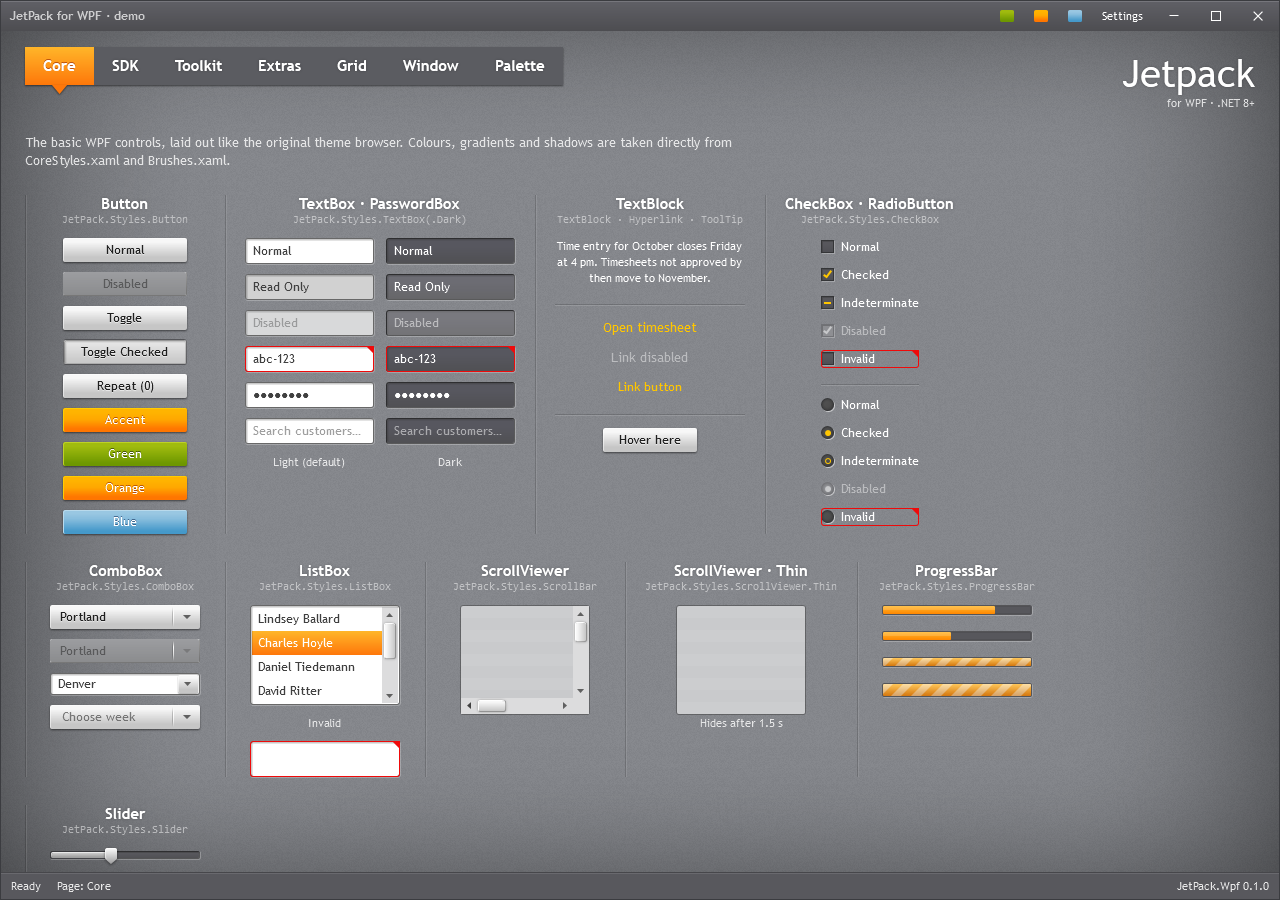
Accents
JetPack ships the three accents of the original theme: green (default), orange and blue. The accent colours selections, checks, progress bars, tooltips, the selected tab and the accent buttons.
using JetPack.Wpf.Theming;

ThemeManager.ChangeAccent(JetPackAccent.Orange);
string current = ThemeManager.CurrentAccent;   // "Orange"
ThemeManager.AccentChanged += (_, _) => { /* refresh anything you cache */ };
Generated accents
ChangeAccent(Color) builds a full accent from one colour. AccentGenerator derives the gradients, highlight and shadow colours with the same lightness and saturation offsets the green accent uses, so a generated accent has the same depth:
ThemeManager.ChangeAccent(Color.FromRgb(0x8E, 0x44, 0xAD), "Purple");
To get the dictionary without applying it (for example to merge it into one window only), call AccentGenerator.Create(color, name).
Very light colours (yellow, pale blue) give white text on a light background on accent buttons; pick a mid-tone base colour.
How switching works
JetPack.xaml merges Accents/Green.xaml. ThemeManager adds the chosen accent dictionary at the end of Application.Resources.MergedDictionaries, where it overrides the default. That is why theme brushes must be referenced with DynamicResource in your XAML.
Focus visuals
The original Silverlight theme had invisible keyboard focus. JetPack shows a 1px ring in the accent highlight around focused buttons and an accent border on focused inputs. To match the original:
ThemeManager.ShowFocusVisuals = false;
The ring on buttons, check boxes and similar controls is WPF’s FocusVisualStyle, so it only appears when focus moves by keyboard. Text inputs show the accent border whenever they have focus.
Control font size
Controls use 12px. The original used 11px:
ThemeManager.ControlFontSize = 11;
Headings are not affected (see Typography).
Overriding colours
Every colour is a resource key (full list in Resource keys). Redefine a key after merging JetPack.xaml to change it app-wide:
<ResourceDictionary.MergedDictionaries>
    <ResourceDictionary Source="pack://application:,,,/JetPack.Wpf;component/Styles/JetPack.xaml" />
</ResourceDictionary.MergedDictionaries>
<SolidColorBrush x:Key="JetPack.Brushes.Error" Color="#FFC00000" />
<SolidColorBrush x:Key="JetPack.Brushes.Panel.Background" Color="#FF65666B" />
Keys that change with the accent (JetPack.Brushes.Accent.*, JetPack.Brushes.Focus*) are replaced by ThemeManager.ChangeAccent, so override those in a custom accent instead.
Overrides also work for a single area: put the key in the Resources of a panel and only its children use the new value.
Window background
The window background is a tiled 200×200 texture (JetPack.Brushes.Window.Background) with a vignette on top (JetPack.Brushes.Window.Vignette). Turn the vignette off per window with ShowVignette="False", or replace the texture brush with your own ImageBrush using the same key.