Navigation and layout
TabControl
There are three looks.
Panel tabs (default)
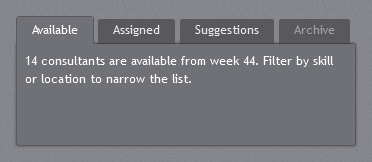
The SDK TabControl: dark tabs on a dark panel (#707176) with a soft shadow. The selected tab merges into the panel; unselected tabs are a shade darker. Page content is white text.
<TabControl>
    <TabItem Header="Available">...</TabItem>
    <TabItem Header="Assigned">...</TabItem>
</TabControl>
Navigation bar
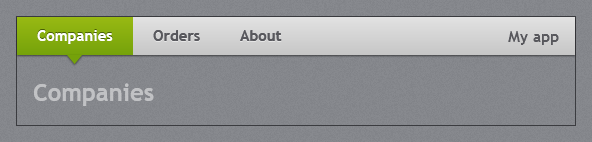
JetPack.Styles.TabControl.Navigation is the light link bar of the original navigation template: a full-width grey bar with bold links, the selected link in the accent gradient with a small notch pointing down at the page. The first link sits flush with the left edge, so put it directly under the title bar. Tag is shown at the right end of the bar (branding, search, user).
<TabControl Style="{StaticResource JetPack.Styles.TabControl.Navigation}">
    <TabControl.Tag>
        <TextBlock Margin="0,0,16,0" FontSize="15" FontWeight="Bold" Text="My app" />
    </TabControl.Tag>
    <TabItem Header="Companies">...</TabItem>
    <TabItem Header="Orders">...</TabItem>
</TabControl>
Strip
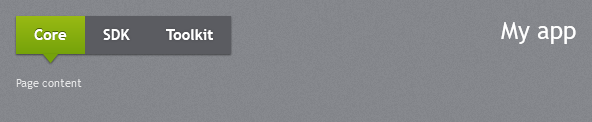
JetPack.Styles.TabControl.Strip is the dark tab strip from the original theme browser (Core / SDK / Toolkit / Charts), with white links and the same accent notch. Tag is shown at the right, outside the strip. The demo uses it for its pages.
<TabControl Style="{StaticResource JetPack.Styles.TabControl.Strip}" Margin="24,16,24,0">
    <TabItem Header="Core">...</TabItem>
</TabControl>
All three support only TabStripPlacement="Top".
HamburgerMenu
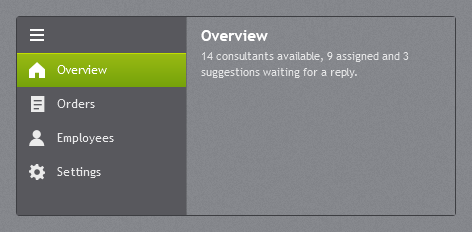
jp:HamburgerMenu is a ListBox with a dark pane on the left and a content area on the right. The selected item gets the accent gradient. The ☰ button collapses the pane to icons.
<jp:HamburgerMenu SelectedIndex="0" Content="{Binding SelectedItem.Tag, RelativeSource={RelativeSource Self}}">
    <jp:HamburgerMenu.ContentTemplate>
        <DataTemplate>
            <ContentPresenter Content="{Binding}" />
        </DataTemplate>
    </jp:HamburgerMenu.ContentTemplate>
    <jp:HamburgerMenuItem Content="Overview" Tag="{StaticResource OverviewPage}">
        <jp:HamburgerMenuItem.Icon>
            <Path Data="{StaticResource IconHome}" Stretch="Uniform"
                  Fill="{Binding Foreground, RelativeSource={RelativeSource AncestorType=jp:HamburgerMenuItem}}" />
        </jp:HamburgerMenuItem.Icon>
    </jp:HamburgerMenuItem>
</jp:HamburgerMenu>
| Property | Type | Default | Description |
|---|---|---|---|
Content | object | null | What the content area shows; usually bound to the selected item. |
ContentTemplate | DataTemplate | null | |
IsPaneOpen | bool | true | Two-way bindable; false shows only icons. |
PaneWidth | double | 170 | |
CompactPaneWidth | double | 40 |
HamburgerMenuItem adds Icon (any element, 16×16). With ItemsSource, items are wrapped in HamburgerMenuItem containers automatically.
Expander
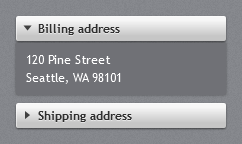
The header is a raised light bar with a bold label and an arrow that turns down when open; the body is a dark panel with a soft shadow.
<Expander Header="Billing address" IsExpanded="True">
<TextBlock Text="120 Pine Street Seattle, WA 98101" />
</Expander>
JetPack.Styles.Expander.Accordion is a flush variant (square header, no gap) used by Accordion. Only ExpandDirection="Down" is styled.
Accordion
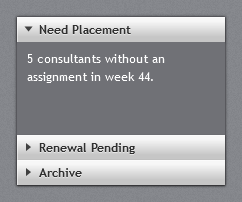
jp:Accordion stacks expanders in one framed panel; opening one closes the others. Given a fixed or stretched height, the open section fills the space the closed headers leave, so those headers sit at the bottom (as in the Toolkit Accordion). With unlimited height it simply stacks.
<jp:Accordion VerticalAlignment="Stretch">
    <Expander Header="Need Placement" IsExpanded="True">
        <TreeView Background="Transparent" BorderThickness="0" ItemsSource="{Binding Companies}" />
    </Expander>
    <Expander Header="Renewal Pending">...</Expander>
    <Expander Header="Archive">...</Expander>
</jp:Accordion>
Items that are not Expanders are wrapped in one. The layout comes from jp:AccordionPanel, which you can also use as the ItemsPanel of your own items control.
GroupBox
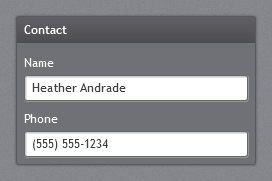
A dark panel with a dark gradient header strip and bold white header text.
<GroupBox Header="Contact">
    <StackPanel>...</StackPanel>
</GroupBox>
Menu, ContextMenu and ToolBar
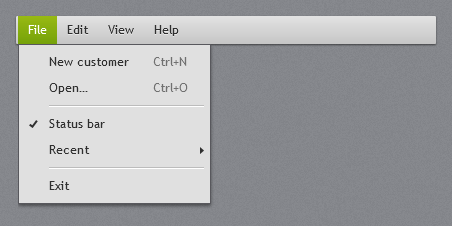
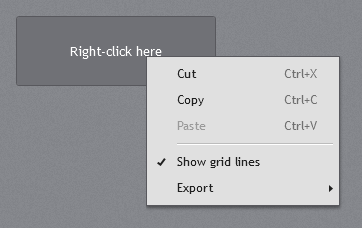
Menu: a light grey bar with a drop shadow; open and hovered top-level items get the accent gradient.- Menu drop-downs and
ContextMenu: light grey (#E0E0E0) panels with a dark border and shadow, an icon/check column, right-aligned shortcut text and two-tone separators. Highlighted items use the accent gradient. ToolBar: a light grey bar with a grip and an overflow button. Buttons and toggle buttons in it are flat until hovered; check boxes, radio buttons, text boxes and combo boxes get tool-bar sizes.

<Menu>
    <MenuItem Header="_File">
        <MenuItem Header="_New customer" InputGestureText="Ctrl+N" />
        <Separator />
        <MenuItem Header="E_xit" />
    </MenuItem>
</Menu>

<ToolBarTray>
    <ToolBar>
        <Button ToolTip="Save"><Path ... /></Button>
        <Separator />
        <ToggleButton IsChecked="True" ToolTip="Bold"><TextBlock FontWeight="Bold" Text="B" /></ToggleButton>
    </ToolBar>
</ToolBarTray>
StatusBar

A dark grey bar with a light line along its top and small light text. Items are 16px apart and the outer ones 10px from the edges. Dock it at the bottom of the window for the footer of the original navigation template:
<StatusBar DockPanel.Dock="Bottom">
    <StatusBarItem Content="Ready" />
    <StatusBarItem Content="5 available · 9 assigned" />
    <StatusBarItem HorizontalAlignment="Right" Content="Last synced 09:42" />
</StatusBar>
GridSplitter and Separator
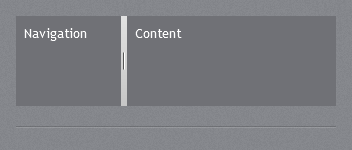
GridSplitter is a light grey bar with a dotted grip. Separator is a two-tone line (dark over light) that reads as an engraved rule on the texture.
ToolTip
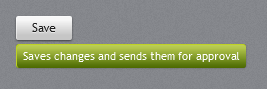
Tool tips use the accent button gradient with a light overlay, a highlighted top edge and white small text, as in the original theme. They follow the accent.