Window and dialogs
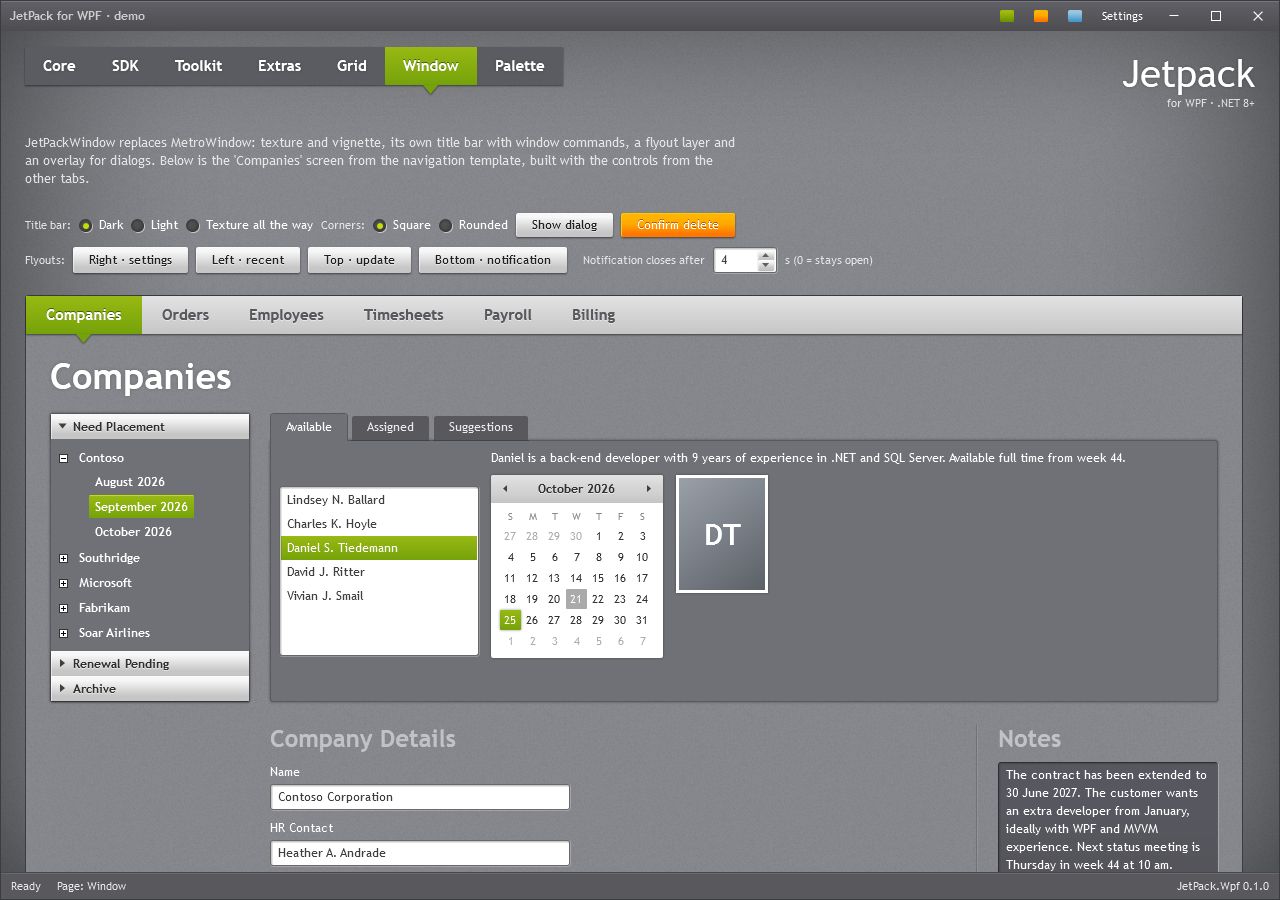
JetPackWindow
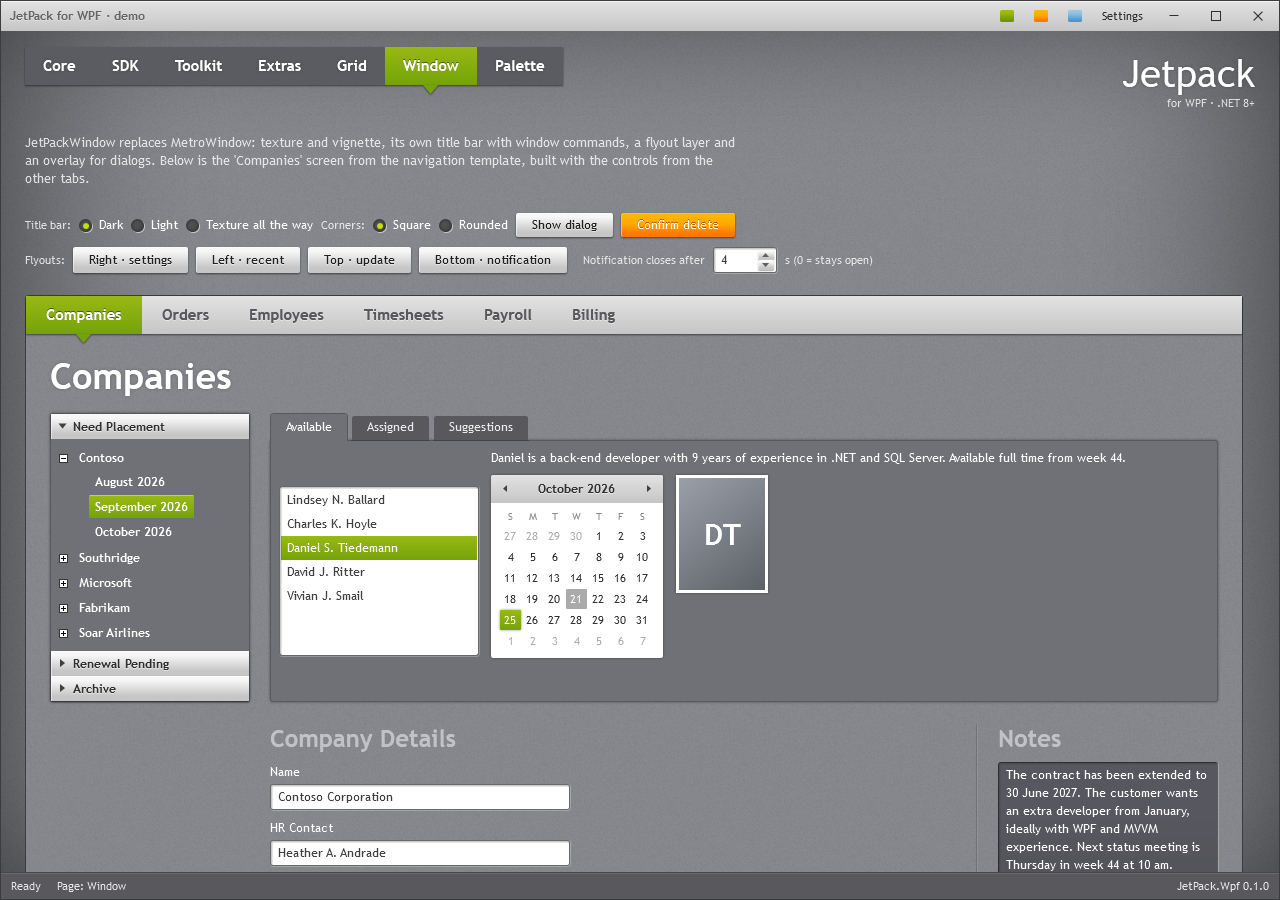
JetPack.Wpf.Controls.JetPackWindow derives from Window and draws its own frame with WindowChrome: the tiled grey texture, the vignette, a 30px title bar with icon, title, window commands and caption buttons, a layer for flyouts and an overlay for dialogs. Snapping, resizing and the system menu keep working.
<jp:JetPackWindow x:Class="MyApp.MainWindow"
                  xmlns="http://schemas.microsoft.com/winfx/2006/xaml/presentation"
                  xmlns:x="http://schemas.microsoft.com/winfx/2006/xaml"
                  xmlns:jp="urn:jetpack-wpf"
                  Title="Consultant planning" TitleBarMode="Dark" CornerStyle="Rounded">
    <jp:JetPackWindow.RightWindowCommands>
        <StackPanel Orientation="Horizontal">
            <Button Content="Settings" Click="OnSettings" />
            <Button Content="Help" />
        </StackPanel>
    </jp:JetPackWindow.RightWindowCommands>
    ...
</jp:JetPackWindow>
Properties
| Property | Type | Default | Description |
|---|---|---|---|
TitleBarMode | TitleBarMode | Dark | Dark: grey gradient (the data grid header) with white text. Light: the light navigation-bar gradient with dark embossed text. Texture: no bar; the texture runs to the top. |
CornerStyle | WindowCornerStyle | Square | Rounded asks the Windows 11 compositor for rounded corners and a frame in the JetPack border colour. Windows 10 keeps square corners. |
HasSystemRoundedCorners | bool (read-only) | True while Windows draws rounded corners; the template then leaves out its own 1px border. | |
TitleBarHeight | double | 30 | Height of the title bar and of the draggable caption area. |
ShowIcon | bool | true | Shows Icon at the left of the title bar. |
ShowVignette | bool | true | The darkened edges of the original theme. |
ShowMinButton | bool | true | |
ShowMaxRestoreButton | bool | true | Also hidden when ResizeMode="NoResize". |
LeftWindowCommands | object | null | Content after the icon. |
RightWindowCommands | object | null | Content before the minimise button. |
Flyouts | object | null | A layer above the window content for Flyout panels; usually a Grid. |
Button and ToggleButton inside the window-command areas automatically get the flat title-bar look (JetPack.Styles.Button.WindowCommand) and inherit the title text colour, which follows TitleBarMode.
Layout tips
The content area is everything under the title bar. Two layouts that match the original navigation template:
<DockPanel>
    <StatusBar DockPanel.Dock="Bottom">
        <StatusBarItem Content="Ready" />
        <StatusBarItem HorizontalAlignment="Right" Content="Last synced 09:42" />
    </StatusBar>
    <TabControl Style="{StaticResource JetPack.Styles.TabControl.Navigation}">
        <TabControl.Tag>
            <TextBlock Margin="0,0,16,0" FontSize="15" FontWeight="Bold" Text="My app" />
        </TabControl.Tag>
        <TabItem Header="Companies">...</TabItem>
    </TabControl>
</DockPanel>
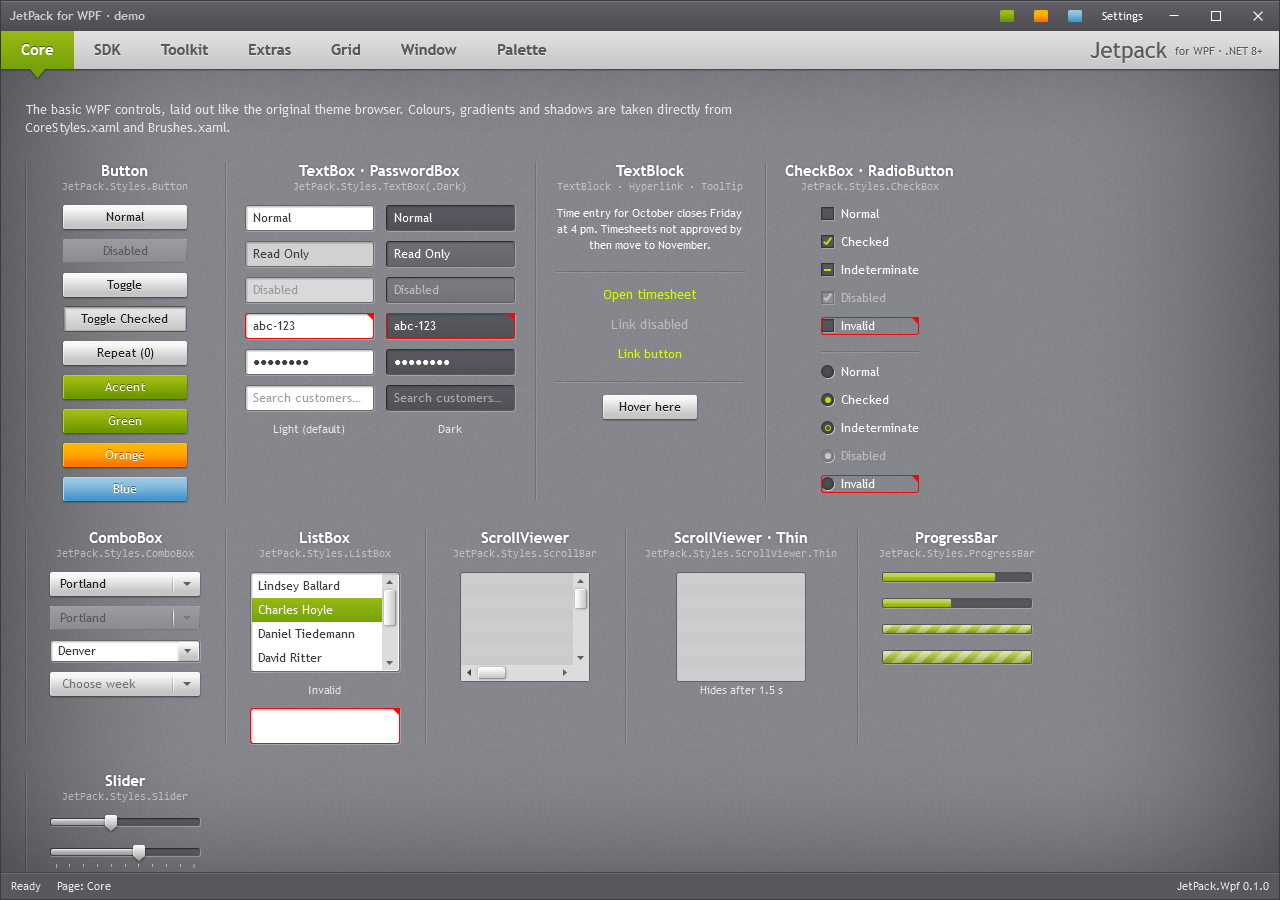
For the dark tab strip of the original theme browser, use JetPack.Styles.TabControl.Strip inside a margin instead. See Navigation and layout.
Maximised windows
When maximised, the window keeps its content inside the screen’s work area (the resize border that WindowChrome hangs over the edge is compensated) and drops its border.
Flyouts
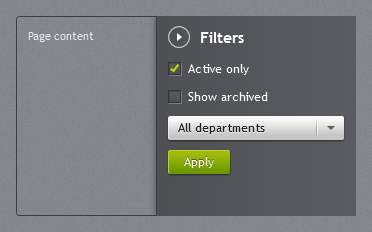
Put Flyout panels in the Flyouts layer. They cover the content area from one of its edges and slide in when IsOpen becomes true:
<jp:JetPackWindow.Flyouts>
    <Grid>
        <jp:Flyout x:Name="SettingsFlyout" Header="Settings" Width="300">
            <StackPanel>
                <jp:ToggleSwitch Content="Notifications" IsChecked="True" />
            </StackPanel>
        </jp:Flyout>
    </Grid>
</jp:JetPackWindow.Flyouts>
private void OnSettings(object sender, RoutedEventArgs e) => SettingsFlyout.IsOpen = !SettingsFlyout.IsOpen;
| Property | Type | Default | Description |
|---|---|---|---|
IsOpen | bool | false | Two-way bindable. |
Position | FlyoutPosition | Right | Right, Left, Top or Bottom; sets the alignment, the slide direction and which way the back button points. |
IsClosable | bool | true | Shows the round back button next to the header. |
Header | object | Bold title next to the back button. | |
IsAutoCloseEnabled | bool | false | Closes the flyout AutoCloseInterval after it opens, as in MahApps. Unlike MahApps, the timer stops while the mouse is over the flyout and starts again when it leaves. |
AutoCloseInterval | long | 5000 | Time in milliseconds before an auto-closing flyout closes. |
Top and bottom
Top and Bottom flyouts span the full width and take the height of their content (the default Width of 300 only applies to Right and Left). A bottom flyout with IsAutoCloseEnabled works as a short notification; a top flyout without it as a message that stays until it is dismissed, such as an available update:
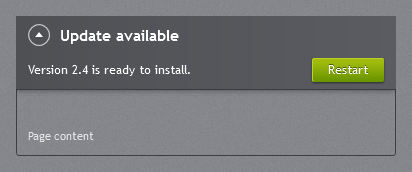
<jp:Flyout x:Name="UpdateFlyout" Position="Top" Header="Update available">
    <DockPanel>
        <Button DockPanel.Dock="Right" Content="Restart" Style="{StaticResource JetPack.Styles.Button.Accent}" />
        <TextBlock Text="Version 2.4 is ready to install." VerticalAlignment="Center" />
    </DockPanel>
</jp:Flyout>
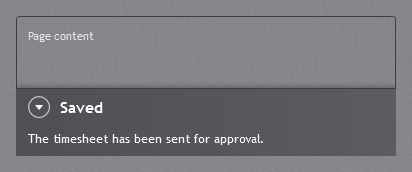
<jp:Flyout x:Name="SavedFlyout" Position="Bottom" Header="Saved"
           IsAutoCloseEnabled="True" AutoCloseInterval="3000">
    <TextBlock Text="The timesheet has been sent for approval." />
</jp:Flyout>
Set IsClosable="False" on a message the user must not dismiss. The Flyouts layer clips its content, so a top flyout slides out from under the title bar rather than over it.
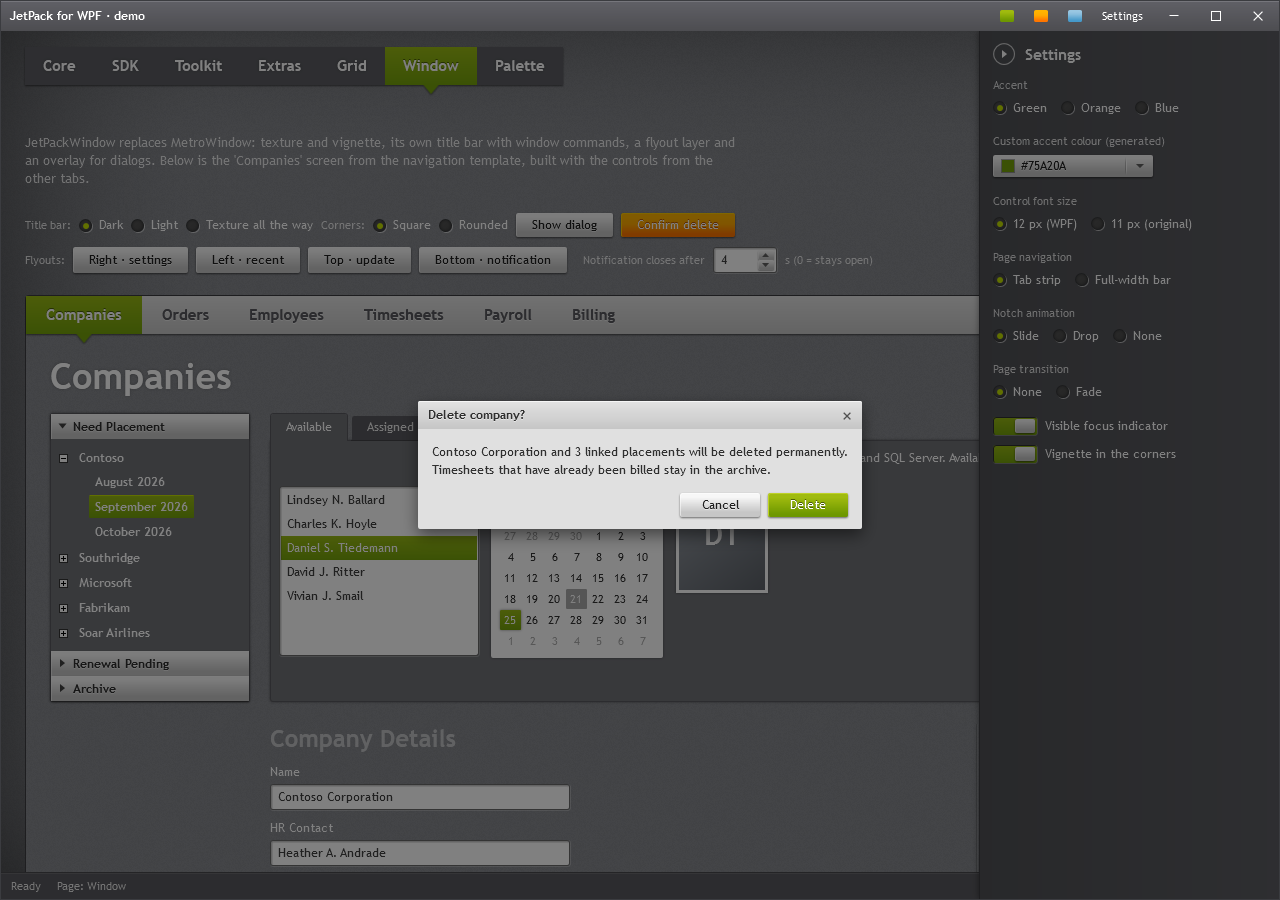
A Flyout works in any Grid, not only in the window layer: the demo uses one inside a small panel on the Extras page. The Window page has a row of buttons that open a flyout at each edge of the demo window, with a field for how long the bottom notification stays open.
Dialogs
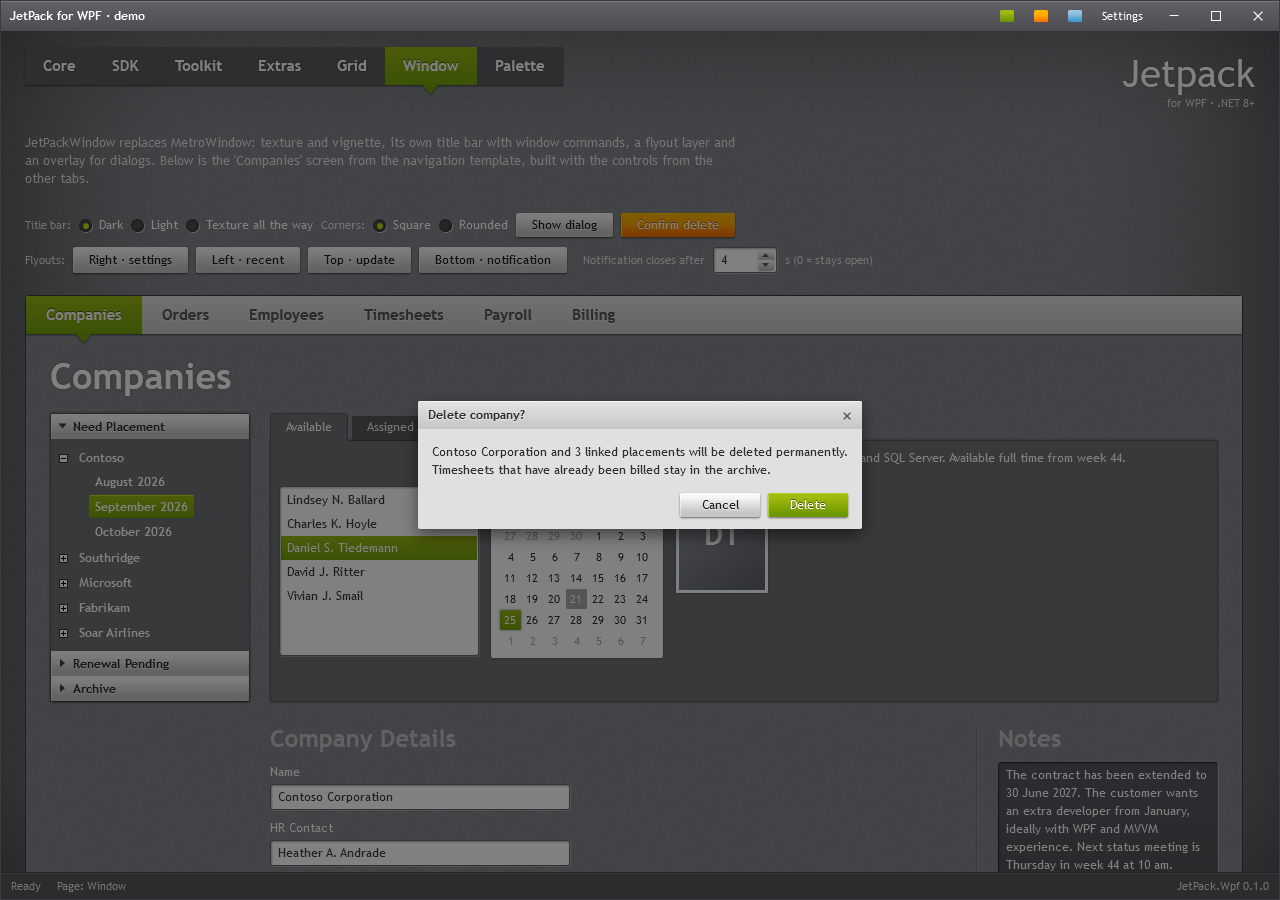
Dialogs are shown inside the window, over a 50% black overlay, in the style of the Silverlight ChildWindow: a light title strip, a grey body and the buttons bottom right.
ShowMessageAsync
var result = await window.ShowMessageAsync(
    "Delete company?",
    "Contoso Corporation and 3 linked placements will be deleted permanently.",
    affirmativeText: "Delete",
    negativeText: "Cancel");

if (result == MessageDialogResult.Affirmative) { ... }
MessageDialogResult is Affirmative, Negative or Canceled (Escape or the close button). Leave negativeText out for a single OK button.
JetPackDialog
For your own content or button styles, create a JetPackDialog and show it with ShowDialogAsync:
var dialog = new JetPackDialog
{
    Title = "Delete company?",
    Content = "Contoso Corporation and 3 linked placements will be deleted permanently.",
    AffirmativeText = "Delete",
    NegativeText = "Cancel",
    AffirmativeButtonStyle = (Style)FindResource("JetPack.Styles.Button.Orange"),
};
var result = await window.ShowDialogAsync(dialog);
| Property | Type | Default | Description |
|---|---|---|---|
Title | string | Text in the title strip. | |
Content | object | String content wraps; any element can be used. | |
AffirmativeText | string | OK | Main button (default button, Enter). |
NegativeText | string? | null | Second button (cancel button); hidden when null. |
AffirmativeButtonStyle | Style | Button.Accent | E.g. JetPack.Styles.Button.Orange for a destructive action. |
Call dialog.Close(result) from your own content to close it with a result. Focus returns to the element that had it before the dialog opened.
Plain Window
To keep the system title bar but use the JetPack background and fonts:
<Window Style="{StaticResource JetPack.Styles.Window}" ... />