Buttons
Button

jp-button is the JetPack button: a light gradient slab with a drop shadow, a white top-left highlight and embossed dark text. Hover lightens it, pressing darkens it, and disabled buttons turn flat grey.
<jp-button>Save</jp-button>
<jp-button is-enabled="false">Save</jp-button>
<jp-button button-style="Accent" type="submit">Update</jp-button>
<jp-button button-style="Orange" content="Delete" />
<jp-button href="/employees/new" button-style="Accent">New employee</jp-button>
<button type="button" class="jp-button">Save</button>
<button type="button" class="jp-button" disabled="disabled">Save</button>
<button type="submit" class="jp-button jp-button--accent">Update</button>
<button type="button" class="jp-button jp-button--orange">Delete</button>
<a href="/employees/new" class="jp-button jp-button--accent">New employee</a>
| Attribute | Default | Description |
|---|---|---|
button-style | Default | the variant, below |
content | the text; without it the element’s content is used (icons, markup) | |
type | button | button, submit or reset |
href | makes it a link that looks like a button (a disabled one stays a <button>) |
Variants
button-style | Class | Look |
|---|---|---|
Default | .jp-button | light grey, dark text |
Accent | .jp-button--accent | the current accent; follows ThemeManager.changeAccent |
Green | .jp-button--green | the original GreenButton, always green |
Orange | .jp-button--orange | the original OrangeButton, always orange (good for destructive actions) |
Blue | .jp-button--blue | the original BlueButton, always blue |
Square | .jp-button--square | 24 px wide icon button |
Flat | .jp-button--flat | no surface until the mouse is over it; for tool bars and title bars |
Link | .jp-button--link | looks like a hyperlink in the accent link colour |
Custom colours
The coloured variants read five custom properties, so a new colour is a class that sets them, used together with jp-button--accent. Put the rule outside the JetPack layers (any ordinary stylesheet), so it wins:
.jp-button--purple {
  --jp-b-normal: linear-gradient(#9C5BB8, #7D3C98);
  --jp-b-over: linear-gradient(#A96CC3, #8A47A6);
  --jp-b-pressed: linear-gradient(#5E2D73, #6B3483);
  --jp-b-highlight: #B07CC6;
  --jp-b-shadow: 0 -1px 0 rgb(40 10 50 / 0.5);
}
<button type="button" class="jp-button jp-button--accent jp-button--purple">Publish</button>
ToggleButton and RepeatButton

jp-toggle-button uses the same chrome; when checked (aria-pressed="true") it looks pressed into the surface. jetpack.js flips it on click and raises jp-change with true or false. jp-repeat-button looks like a button and clicks once when pressed, then every 33 ms after 0.4 s while it is held. Both take the attributes of jp-button.
<jp-toggle-button is-checked="true">Bold</jp-toggle-button>
<jp-repeat-button id="Next">Next</jp-repeat-button>
<button type="button" class="jp-button" aria-pressed="true" data-jp-toggle="">Bold</button>
<button type="button" class="jp-button" data-jp-repeat="" id="Next">Next</button>
| Attribute | Default | Description |
|---|---|---|
is-checked | false | jp-toggle-button only: starts pressed |
Hyperlink
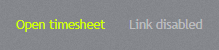
jp-hyperlink is a link in the accent link colour (bright lime for green) that underlines on hover. Disabled links turn 45% white and lose their address.
<jp-hyperlink href="/timesheets/43">Open timesheet</jp-hyperlink>
<jp-hyperlink is-enabled="false">Link disabled</jp-hyperlink>
<a class="jp-hyperlink" href="/timesheets/43">Open timesheet</a>
<a class="jp-hyperlink" aria-disabled="true">Link disabled</a>
| Attribute | Default | Description |
|---|---|---|
href | # | the address |
SplitButton
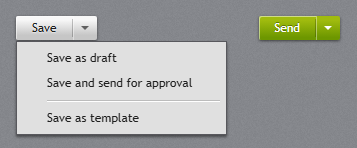
jp-split-button is a button with a separate arrow part. The main part is an ordinary button; the arrow opens the menu (a popover) below it. The children are menu items.
<jp-split-button id="Save" content="Save">
    <jp-menu-item header="Save as draft" />
    <jp-menu-item header="Save and send for approval" />
</jp-split-button>
<div class="jp-split-button" id="Save">
    <button type="button" class="jp-button">Save</button>
    <button type="button" class="jp-button" popovertarget="Save-menu" aria-haspopup="menu" aria-label="More"><i class="jp-caret"></i></button>
    <div class="jp-context-menu" popover id="Save-menu" role="menu">
        <button type="button" class="jp-menu-item" role="menuitem"><span class="jp-menu-item__header">Save as draft</span></button>
        …
    </div>
</div>
| Attribute | Default | Description |
|---|---|---|
content | the text of the main part | |
button-style | Default | Accent gives JetPack.Styles.SplitButton.Accent (any button variant works) |
id | generated | the id of the control; the menu gets <id>-menu |
Listen for click on the first button for the main action, and for clicks on the menu items:
document.querySelector('#Save > .jp-button').addEventListener('click', save);
DropDownButton
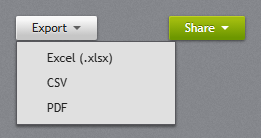
jp-drop-down-button opens its menu when clicked. It takes the same attributes as jp-split-button.
<jp-drop-down-button content="Export" button-style="Accent">
    <jp-menu-item header="Excel (.xlsx)" href="/export?format=xlsx" />
    <jp-menu-item header="PDF" href="/export?format=pdf" />
</jp-drop-down-button>
<span class="jp-drop-down-button">
    <button type="button" class="jp-button jp-button--accent" popovertarget="…-menu" aria-haspopup="menu">Export <i class="jp-caret"></i></button>
    <div class="jp-context-menu" popover id="…-menu" role="menu">…</div>
</span>
To line the menu up with the button’s right edge, set data-jp-align="right" on the .jp-context-menu.
Tile
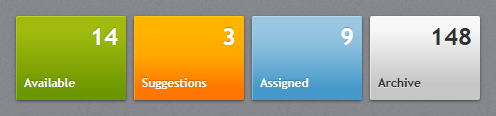
jp-tile is a large button with a count in the top-right corner and a title bottom-left. It fills the width it is given (a grid column, or a width class); the WPF tile is 110×84.
<jp-tile title="Available" count="14" tile-style="Green" href="/consultants?status=available" />
<jp-tile title="Archive" count="148" />
<a class="jp-tile jp-tile--green" href="/consultants?status=available"><span class="jp-tile__title">Available</span><b class="jp-tile__count">14</b></a>
<button class="jp-tile" type="button"><span class="jp-tile__title">Archive</span><b class="jp-tile__count">148</b></button>
| Attribute | Default | Description |
|---|---|---|
title | the bottom-left label | |
count | the large top-right value | |
tile-style | Default | Default (light), Accent, Green, Orange, Blue |
href | makes it a link; without it a <button> |
Content inside the tag helper goes in the row between the count and the title.
Badged
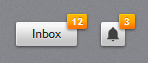
jp-badged puts a small orange count badge on the top-right corner of any element:
<jp-badged badge="12"><jp-button>Inbox</jp-button></jp-badged>
<span class="jp-badged"><button type="button" class="jp-button">Inbox</button><span class="jp-badged__badge">12</span></span>
| Attribute | Description |
|---|---|
badge | the badge text; without it no badge is shown |
To change the number from script, set the text of .jp-badged__badge.