Navigation and layout
TabControl
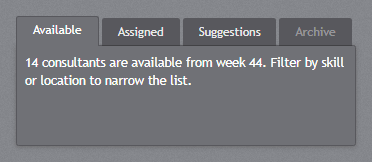
jp-tab-control has three looks, as in WPF. The default is the panel with tabs on top: the selected tab joins the panel below it, the others are dark. The content fills the control’s height when you give it one.
<jp-tab-control class="h-40">
    <jp-tab-item header="Available">14 consultants are available from week 44.</jp-tab-item>
    <jp-tab-item header="Assigned">…</jp-tab-item>
    <jp-tab-item header="Archive" is-enabled="false" />
</jp-tab-control>
<div id="jp-tabs-1" class="jp-tab-control h-40" data-selection-animation="slide" data-content-transition="none">
    <div class="jp-tab-control__header">
        <div class="jp-tab-control__strip" role="tablist">
            <button type="button" class="jp-tab-item" role="tab" id="jp-tabs-1-tab-0" aria-controls="jp-tabs-1-panel-0" aria-selected="true" tabindex="0">Available</button>
            <button type="button" class="jp-tab-item" role="tab" id="jp-tabs-1-tab-1" aria-controls="jp-tabs-1-panel-1" aria-selected="false" tabindex="-1">Assigned</button>
            <button type="button" class="jp-tab-item" role="tab" … disabled>Archive</button>
            <span class="jp-tab-control__notch" aria-hidden="true"></span>
        </div>
    </div>
    <div class="jp-tab-control__content" role="tabpanel" id="jp-tabs-1-panel-0" aria-labelledby="jp-tabs-1-tab-0">14 consultants are available from week 44.</div>
    <div class="jp-tab-control__content" role="tabpanel" id="jp-tabs-1-panel-1" aria-labelledby="jp-tabs-1-tab-1" hidden>…</div>
    …
</div>
| Attribute | Default | Description |
|---|---|---|
tab-control-style | Default | Default (panel), Strip or Navigation, below |
selected-index | 0 | the selected tab (or is-selected on a jp-tab-item) |
selection-animation | Slide | TabControlHelper.SelectionAnimation: how the notch moves to the selected tab: Slide, Drop or None |
content-transition | None | TabControlHelper.ContentTransition: None or Fade |
use-hash | false | keeps the selected tab in the address (#name), so a link or a reload opens that tab |
id | generated | the id of the control; the tabs and panels get ids from it |
jp-tab-item attribute | Description |
|---|---|
header | the tab text |
name | a stable key for the tab: its ids, and the #name of use-hash |
is-selected | the selected tab |
is-enabled | false shows the tab dimmed |
class | goes on the tab’s content panel |
Click a tab, or use the arrow keys, Home and End in the strip. Selecting a tab raises jp-change with { index, header, name }. From script:
const tabs = document.getElementById('Pages');
tabs.jetpack.select('sdk');       // by name, header or index
tabs.jetpack.selectedIndex;       // 1
Navigation bar
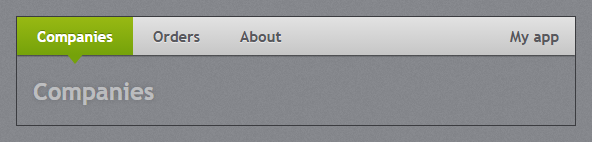
tab-control-style="Navigation" is the full-width light bar of the original theme’s navigation template: large tab headers, the selected one in the accent with the notch under it, and the content below with no frame. jp-tab-control-tag is the TabControl’s Tag, shown at the right end of the bar (the app name, a logo).
<jp-tab-control tab-control-style="Navigation">
    <jp-tab-control-tag><b>My app</b></jp-tab-control-tag>
    <jp-tab-item header="Companies" name="companies">…</jp-tab-item>
    <jp-tab-item header="Orders" name="orders">…</jp-tab-item>
</jp-tab-control>
<div id="…" class="jp-tab-control jp-tab-control--navigation" …>
    <div class="jp-tab-control__header">
        <div class="jp-tab-control__strip" role="tablist">… <span class="jp-tab-control__notch" aria-hidden="true"></span></div>
        <div class="jp-tab-control__tag"><b>My app</b></div>
    </div>
    …
</div>
Strip
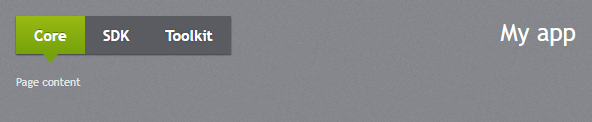
tab-control-style="Strip" is the dark strip of the demo, with the Tag at the right. It is the page switcher of the web demo. Both bar looks leave the content unframed.
HamburgerMenu
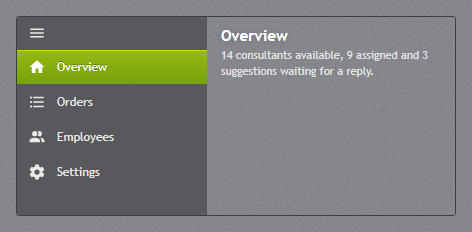
jp-hamburger-menu is the dark navigation pane with an icon and a label for each page; the button at the top folds it to the icons. It works in two ways.
As the window’s navigation. Put it in .jp-window__body, before the content, and give the items an href. Each page marks its own item with is-selected (or aria-current="page"). Folding the pane is remembered in the browser for all pages, and narrow windows (640 px or less) start folded.
<div class="jp-window__body">
    <jp-hamburger-menu>
        <jp-hamburger-menu-item content="Dashboard" icon="ViewGrid" href="/" is-selected="@(page == "Dashboard")" />
        <jp-hamburger-menu-item content="Employees" icon="AccountMultiple" href="/employees" is-selected="@(page == "Employees")" />
    </jp-hamburger-menu>
    <main class="jp-window__content">@RenderBody()</main>
</div>
<nav class="jp-hamburger-menu" aria-label="Pages">
    <button type="button" class="jp-hamburger-menu__toggle" data-jp-toggle-pane aria-expanded="true" aria-label="Show page names"><svg class="jp-icon" …></svg></button>
    <a class="jp-hamburger-menu__item" href="/" title="Dashboard" aria-current="page"><svg class="jp-icon" …></svg><span class="jp-hamburger-menu__label">Dashboard</span></a>
    …
</nav>
As a control with its own pages. When the items have content and no href, the tag helper writes the pane and a content area beside it, and clicking an item shows its content, as the control does in a WPF window. Give it a size.
<jp-hamburger-menu selected-index="0" class="h-52">
    <jp-hamburger-menu-item content="Overview" icon="Home"><h5>Overview</h5>…</jp-hamburger-menu-item>
    <jp-hamburger-menu-item content="Settings" icon="Cog">…</jp-hamburger-menu-item>
</jp-hamburger-menu>
| Attribute | Default | Description |
|---|---|---|
selected-index | -1 | the selected item (or is-selected on an item) |
is-pane-open | true | false starts folded to the icons |
pane-width | 190 | the width of the open pane in pixels |
jp-hamburger-menu-item attribute | Description |
|---|---|
content | the label |
icon | a JetPackIconKind |
href | makes the item a link |
is-selected | the selected item |
A check box or toggle switch with data-jp-pane-switch folds and opens the window’s pane as well (the demo’s Settings flyout has one). To fold a pane that is not directly in .jp-window__body, mark it data-jp-window-pane.
Expander
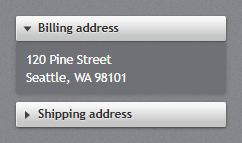
jp-expander is a <details>: the light header with the arrow, and the content in a dark panel below it. It folds without script.
<jp-expander header="Billing address" is-expanded="true">120 Pine Street<br>Seattle, WA 98101</jp-expander>
<details class="jp-expander" open="open">
    <summary>Billing address</summary>
    <div class="jp-expander__content">120 Pine Street<br>Seattle, WA 98101</div>
</details>
| Attribute | Default | Description |
|---|---|---|
header | the header text | |
is-expanded | false | open |
Use the toggle event of <details> to react to it.
Accordion
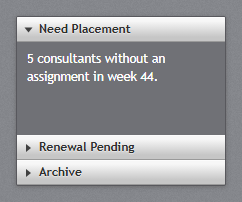
jp-accordion puts expanders in one frame, with one open at a time (the expanders share a <details name>). Given a height, the open expander fills it and the closed headers sit at the bottom.
<jp-accordion class="h-44">
    <jp-expander header="Need Placement" is-expanded="true">5 consultants without an assignment.</jp-expander>
    <jp-expander header="Renewal Pending">2 contracts expire on 31 December.</jp-expander>
</jp-accordion>
<div class="jp-accordion h-44">
    <details class="jp-expander" open="open" name="jp-accordion-1"><summary>Need Placement</summary><div class="jp-expander__content">…</div></details>
    <details class="jp-expander" name="jp-accordion-1"><summary>Renewal Pending</summary><div class="jp-expander__content">…</div></details>
</div>
GroupBox
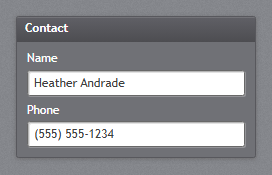
jp-group-box is a dark panel with a header strip.
<jp-group-box header="Contact">
    <jp-label content="Name" target="Name" />
    <jp-text-box id="Name" text="Heather Andrade" />
</jp-group-box>
<section class="jp-group-box">
    <h2 class="jp-group-box__header">Contact</h2>
    <div class="jp-group-box__content">…</div>
</section>
| Attribute | Description |
|---|---|
header | the header text |
Menu, ContextMenu and ToolBar
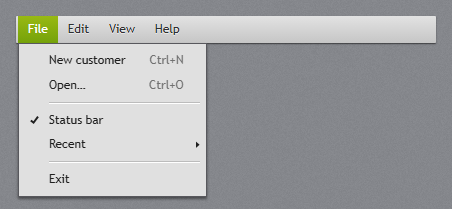
jp-menu is the light menu bar. Its jp-menu-item children are the top-level headers, and their children are the menu that opens below them, a popover. Once a menu is open, the mouse opens the other headers’ menus at once; the arrow keys move in a menu, Right opens a submenu and Left closes it, and Esc closes the menu.
<jp-menu>
    <jp-menu-item header="_File">
        <jp-menu-item header="_New customer" input-gesture-text="Ctrl+N" icon="FilePlus" />
        <jp-separator />
        <jp-menu-item header="Status bar" is-checkable="true" is-checked="true" />
        <jp-menu-item header="Recent">
            <jp-menu-item header="Contoso Corporation" href="/customers/17" />
        </jp-menu-item>
    </jp-menu-item>
    <jp-menu-item header="_Help" />
</jp-menu>
<nav class="jp-menu" role="menubar">
    <button type="button" class="jp-menu-item" role="menuitem" popovertarget="jp-submenu-1" aria-haspopup="menu">File</button>
    <div class="jp-context-menu" popover id="jp-submenu-1" role="menu">
        <button type="button" class="jp-menu-item" role="menuitem"><svg class="jp-icon" aria-hidden="true">…</svg><span class="jp-menu-item__header">New customer</span><span class="jp-menu-item__gesture">Ctrl+N</span></button>
        <hr class="jp-menu-separator" />
        <button type="button" class="jp-menu-item" role="menuitemcheckbox" aria-checked="true"><span class="jp-menu-item__header">Status bar</span></button>
        <button type="button" class="jp-menu-item" role="menuitem" aria-haspopup="menu" data-jp-submenu="jp-submenu-2"><span class="jp-menu-item__header">Recent</span></button>
        <div class="jp-context-menu" popover id="jp-submenu-2" role="menu">…</div>
    </div>
    <button type="button" class="jp-menu-item" role="menuitem">Help</button>
</nav>
jp-menu-item attribute | Default | Description |
|---|---|---|
header | the text (an _ access key marker is dropped) | |
input-gesture-text | the shortcut shown at the right; it only shows the text, it does not bind the key | |
icon | a JetPackIconKind in the icon column | |
is-checkable | false | a check item: a click flips aria-checked |
is-checked | false | shows the check mark |
href | makes the item a link |
A click on an item closes the menu; listen for click on the items (or use href).
ContextMenu
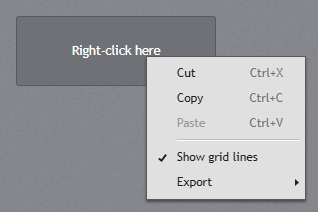
jp-context-menu is a menu that opens at the mouse on a right-click. Give it an id, and put data-jp-context-menu="id" on the elements it belongs to:
<div data-jp-context-menu="GridMenu">Right-click here</div>
<jp-context-menu id="GridMenu">
    <jp-menu-item header="Copy" input-gesture-text="Ctrl+C" />
    <jp-menu-item header="Paste" input-gesture-text="Ctrl+V" is-enabled="false" />
    <jp-separator />
    <jp-menu-item header="Export"><jp-menu-item header="PDF" /></jp-menu-item>
</jp-context-menu>
<div class="jp-context-menu" id="GridMenu" popover role="menu">…</div>
The same .jp-context-menu is the menu of SplitButton and DropDownButton.
ToolBar

jp-tool-bar is the light bar with the grip. In it, buttons are flat until the mouse is over them, pressed toggle buttons look pressed in, and a jp-separator is the vertical separator. jp-tool-bar-tray holds one or more tool bars.
<jp-tool-bar-tray>
    <jp-tool-bar>
        <jp-button tool-tip="Save"><jp-icon kind="ContentSave" /></jp-button>
        <jp-separator />
        <jp-toggle-button is-checked="true"><b>B</b></jp-toggle-button>
        <jp-combo-box selected-index="0" class="!w-28"><jp-combo-box-item content="Trebuchet MS" /></jp-combo-box>
        <jp-check-box content="Spelling" is-checked="true" on-light="true" />
    </jp-tool-bar>
</jp-tool-bar-tray>
<div class="jp-tool-bar-tray">
    <div class="jp-tool-bar" role="toolbar"><span class="jp-tool-bar__thumb" aria-hidden="true"></span>
        <button type="button" class="jp-button" data-jp-tool-tip="Save">…</button>
        <span class="jp-tool-bar__separator" role="separator"></span>
        …
    </div>
</div>
StatusBar

jp-status-bar is the dark bar at the bottom of the window, with small text. Items with horizontal-alignment="Right" move to the right end.
<jp-status-bar>
    <jp-status-bar-item>Ready</jp-status-bar-item>
    <jp-status-bar-item content="5 available · 9 assigned" />
    <jp-status-bar-item horizontal-alignment="Right">Syncing <jp-progress-bar is-indeterminate="true" class="!w-20 !h-2" /></jp-status-bar-item>
</jp-status-bar>
<footer class="jp-status-bar">
    <span>Ready</span>
    <span>5 available · 9 assigned</span>
    <span class="jp-status-bar__item--right">Syncing <progress class="!w-20 !h-2 jp-progress-bar" max="100"></progress></span>
</footer>
jp-status-bar-item attribute | Description |
|---|---|
content | the text; without it the element’s content is used |
horizontal-alignment | Right moves the item (and the ones after it) to the right |
GridSplitter and Separator
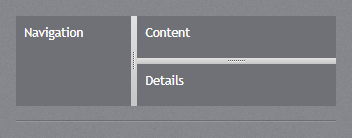
jp-grid-splitter goes between two panes of a flex row: dragging it (or the Left and Right keys, 10 px a step) resizes the pane before it, within both panes’ min-width. Between two panes of a flex column, give it resize-direction="Rows" (class jp-grid-splitter--rows): the bar lies down, the grip turns with it, and it resizes heights with the Up and Down keys, within min-height. jetpack.js also treats a splitter in a flex column as a row splitter without the attribute. jp-separator is the etched horizontal line; in a menu it is the menu separator, and in a tool bar the vertical one.
<div class="flex h-40">
    <div class="flex-1 min-w-24">Navigation</div>
    <jp-grid-splitter />
    <div class="flex-[2] min-w-24 flex flex-col">
        <div class="flex-1 min-h-8">Content</div>
        <jp-grid-splitter resize-direction="Rows" />
        <div class="flex-1 min-h-8">Details</div>
    </div>
</div>
<jp-separator />
<div class="jp-grid-splitter" role="separator" aria-orientation="vertical"></div>
<div class="jp-grid-splitter jp-grid-splitter--rows" role="separator" aria-orientation="horizontal"></div>
<hr class="jp-separator" />
jp-grid-splitter attribute | Description |
|---|---|
resize-direction | Columns (default) or Rows |
ToolTip
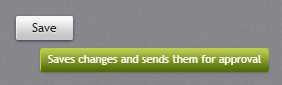
tool-tip on any control tag helper, or jp-tool-tip on any element, shows the green JetPack call-out under the pointer after half a second:
<jp-button tool-tip="Saves changes and sends them for approval">Save</jp-button>
<span jp-tool-tip="Hours this week">37.5</span>
<button type="button" class="jp-button" data-jp-tool-tip="Saves changes and sends them for approval">Save</button>
<span data-jp-tool-tip="Hours this week">37.5</span>
Both write data-jp-tool-tip, which you can also set from script. Use it in place of title, which shows the browser’s own tool tip.