Text and input
TextBox
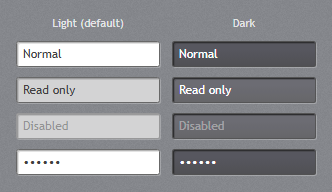
jp-text-box writes an <input class="jp-text-box">: white with a dark inset border, an accent border when it has the focus, grey when read-only or disabled. text-box-style="Dark" is the dark field for the dark panels.
<jp-text-box asp-for="Name" />
<jp-text-box name="Search" type="search" text="Contoso" />
<jp-text-box text="Read only" is-read-only="true" />
<jp-text-box text-box-style="Dark" text="Normal" />
<input class="jp-text-box" type="text" id="Name" name="Name" value="Heather Andrade" />
<input class="jp-text-box" type="search" name="Search" value="Contoso" />
<input class="jp-text-box" readonly="readonly" type="text" value="Read only" />
<input class="jp-text-box jp-text-box--dark" type="text" value="Normal" />
| Attribute | Default | Description |
|---|---|---|
asp-for | binds a model property: name, id, value and validation attributes | |
text | the value, without asp-for | |
name, id | without asp-for | |
type | text | the input type: text, email, search, tel, url … |
text-box-style | Default | Default, Dark, MultiLine, MultiLineDark |
watermark | TextBoxHelper.Watermark: grey text while the box is empty (placeholder) | |
clear-text-button | false | TextBoxHelper.ClearTextButton: an × that empties the box |
is-read-only | false | read-only |
Multi-line
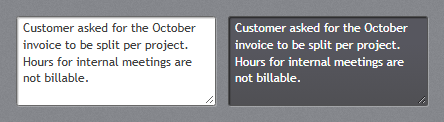
text-box-style="MultiLine" (or MultiLineDark) writes a <textarea class="jp-text-box">, which wraps and scrolls. Give it a height:
<jp-text-box asp-for="Notes" text-box-style="MultiLine" class="h-24" />
Watermark and clear button
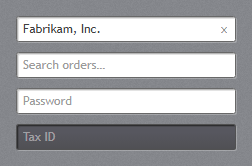
watermark is the HTML placeholder. clear-text-button="true" wraps the box in a .jp-text-box-host with an × button; clicking it empties the box, raises input and change, and puts the focus back.
<jp-text-box watermark="Search orders…" clear-text-button="true" />
<div class="jp-text-box-host">
    <input class="jp-text-box" placeholder="Search orders…" type="text" />
    <button type="button" class="jp-text-box-host__clear" data-jp-clear aria-label="Clear" tabindex="-1">×</button>
</div>
PasswordBox
jp-password-box is a text box with type="password"; it takes the attributes of jp-text-box, with password for the value.
<jp-password-box asp-for="Password" watermark="Password" />
Label
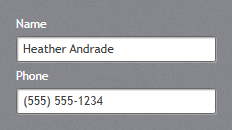
jp-label is the form label: white, in the control font size, with 3px below it. target is the id of its field (Label.Target), so a click on the label focuses the field.
<jp-label content="Name" target="Name" />
<jp-text-box asp-for="Name" />
<label class="jp-label" for="Name">Name</label>
<input class="jp-text-box" type="text" id="Name" name="Name" value="" />
| Attribute | Description |
|---|---|
content | the text; without it the element’s content is used |
target | the id of the field (the for attribute) |
ASP.NET Core’s own <label asp-for="Name" class="jp-label"> works as well.
Validation
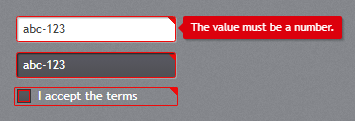
An invalid field gets the red frame and the red corner of the WPF validation template. A field is invalid when it has aria-invalid="true", or ASP.NET Core’s input-validation-error class, which asp-for adds after a failed post. The message can show in two ways:
data-jp-error="…"(whatvalidation-errorwrites): the message shows in a red call-out at the field’s right while it has the focus or the mouse, as in WPF.- A
.jp-validation-messageelement under the field: a red call-out with an arrow pointing up. Put the class on ASP.NET Core’sasp-validation-forelement; it takes no space while the field is valid.
<jp-text-box text="abc-123" validation-error="The value must be a number." />
<jp-check-box content="I accept the terms" validation-error="You must accept the terms." />

<jp-label content="Name" target="Name" />
<jp-text-box asp-for="Name" />
<span class="jp-validation-message" asp-validation-for="Name"></span>
<input aria-invalid="true" class="jp-text-box" data-jp-error="The value must be a number." type="text" value="abc-123" />
<label class="jp-check-box" aria-invalid="true" data-jp-error="You must accept the terms."><input type="checkbox" value="true" />I accept the terms</label>
validation-error works on every control tag helper. From script, set or remove the two attributes.
ComboBox
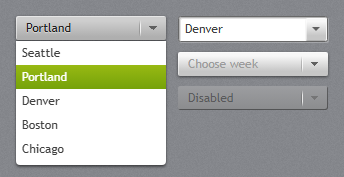
jp-combo-box writes a <select class="jp-combo-box">. jetpack.js opens the JetPack drop-down list in place of the browser’s own (Space, Enter or Alt+Down opens it; the arrow keys, Enter and Esc work in it); without script it is still a working select. With is-editable="true" it is a text box with the items as suggestions.
<jp-combo-box selected-index="1">
    <jp-combo-box-item content="Seattle" />
    <jp-combo-box-item content="Portland" />
    <jp-combo-box-item content="Denver" is-enabled="false" />
</jp-combo-box>
<jp-combo-box asp-for="DepartmentId" asp-items="Model.Departments" watermark="Choose a department" />
<jp-combo-box is-editable="true" text="Denver" name="City">
    <jp-combo-box-item content="Seattle" />
    <jp-combo-box-item content="Denver" />
</jp-combo-box>
<select class="jp-combo-box"><option>Seattle</option><option selected>Portland</option><option disabled>Denver</option></select>

<div class="jp-combo-box jp-combo-box--editable">
    <input class="jp-text-box" list="jp-combo-1" value="Denver" name="City">
    <button type="button" class="jp-text-box-button jp-text-box-button--drop-down" tabindex="-1" aria-label="Open"></button>
    <datalist id="jp-combo-1"><option value="Seattle"></option><option value="Denver"></option></datalist>
</div>
| Attribute | Default | Description |
|---|---|---|
asp-for, asp-items | bind the selected value and the items, as ASP.NET Core’s select tag helper | |
selected-index | -1 | the selected item, without asp-for |
watermark | grey text while nothing is chosen (a hidden empty first option) | |
is-editable | false | a text box with the items as suggestions |
text | the text of an editable combo box | |
name, id | without asp-for |
jp-combo-box-item takes content, value (the posted value; the content when left out) and is-enabled. Choosing an item raises input, change and jp-change (the value).
NumericUpDown
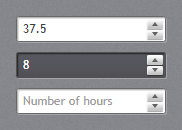
jp-numeric-up-down is an <input type="number"> with the JetPack spin buttons. The buttons step by interval and repeat while held; the arrow keys step as in any number field.
<jp-numeric-up-down asp-for="HoursPerWeek" minimum="0" maximum="60" interval="0.5" string-format="N1" />
<jp-numeric-up-down value="8" minimum="0" dark="true" />
<jp-numeric-up-down name="Hours" watermark="Number of hours" minimum="0" />
<div class="jp-numeric-up-down">
    <input class="jp-text-box" max="60" min="0" step="0.5" type="number" id="HoursPerWeek" name="HoursPerWeek" value="37.5" />
    <span class="jp-numeric-up-down__spin">
        <button type="button" data-jp-step="1" tabindex="-1" aria-label="Increase"></button>
        <button type="button" data-jp-step="-1" tabindex="-1" aria-label="Decrease"></button>
    </span>
</div>
| Attribute | Default | Description |
|---|---|---|
asp-for | binds a number property | |
value, name | without asp-for | |
minimum, maximum | the range (min, max) | |
interval | 1 | the step of the buttons (step) |
string-format | a .NET format for the first value, such as N1 (written with a period, as type="number" needs) | |
watermark | grey text while the box is empty | |
dark | false | JetPack.Styles.NumericUpDown.Dark |
AutoSuggestBox
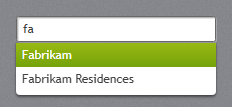
jp-auto-suggest-box is a search box that lists the items containing what you type. Picking one puts it in the box and raises jp-change with the text. The items go to the page as JSON.
<jp-auto-suggest-box items="Model.CompanyNames" watermark="Search companies…" name="Company" />
<div class="jp-auto-suggest-box">
    <input class="jp-text-box" type="search" autocomplete="off" value="" placeholder="Search companies…" name="Company">
    <script type="application/json">["Fabrikam","Fabrikam Residences","Contoso"]</script>
</div>
| Attribute | Description |
|---|---|
items | the suggestions, any IEnumerable<string> |
text | the text in the box |
watermark, name | as on jp-text-box |
For suggestions from the server, listen for input on the box and replace the JSON (or fill the list yourself).
SearchComboBox
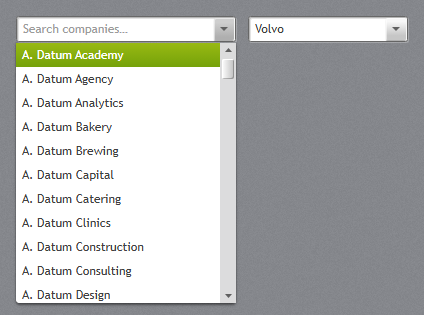
jp-search-combo-box is a combo box you type into to filter a long list (it shows the first 300 matches). The items can be objects: display-member-path names the property to show and selected-value-path the one to post.
<jp-search-combo-box items="Model.Companies" display-member-path="Name" selected-value-path="Id"
                     selected-value="Model.CompanyId" name="CompanyId" watermark="Search companies…" />
<jp-search-combo-box items="Model.CarBrands" selected-item="@("Volvo")" />
<div class="jp-search-combo-box" data-jp-display-member="Name" data-jp-value-member="Id" data-jp-selected-value="1042">
    <input class="jp-text-box" autocomplete="off" role="combobox" placeholder="Search companies…">
    <button type="button" class="jp-text-box-button jp-text-box-button--drop-down" tabindex="-1" aria-label="Open"></button>
    <input type="hidden" name="CompanyId">
    <script type="application/json">[{"Id":1042,"Name":"A. Datum Academy"}, …]</script>
</div>
| Attribute | Default | Description |
|---|---|---|
items | the list, any IEnumerable (serialised as JSON) | |
display-member-path | the property to show; without it the items themselves | |
selected-value-path | the property to post and to match selected-value | |
selected-value | the value of the selected item | |
selected-item | the selected item itself, for lists of strings | |
filter-mode | Contains | Contains or StartsWith |
watermark, name, id | name adds a hidden input with the selected value |
Choosing an item raises jp-change with { selectedItem, selectedValue }.
DatePicker
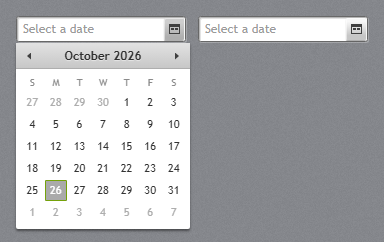
jp-date-picker is a text box with a calendar button that opens a Calendar below it. A typed date (M/d/yyyy, as in the WPF demo) is read when the box loses the focus; Alt+Down opens the calendar.
<jp-date-picker selected-date="@DateTime.Today" name="StartDate" />
<jp-date-picker watermark="Start date" />
<div class="jp-date-picker" data-selected-date="2026-10-26">
    <input class="jp-text-box" value="10/26/2026" placeholder="Select a date">
    <button type="button" class="jp-text-box-button jp-text-box-button--calendar" tabindex="-1" aria-label="Show calendar"></button>
    <input type="hidden" name="StartDate" value="2026-10-26">
</div>
| Attribute | Default | Description |
|---|---|---|
selected-date | the date | |
watermark | Select a date | grey text while the box is empty |
name | adds a hidden input that posts the date as yyyy-MM-dd (binds to DateTime and DateOnly) |
Choosing a date raises jp-change with a Date (or null when the box is emptied). JetPack.formatDate(date) and JetPack.parseDate(text) convert in the picker’s format.
TimePicker
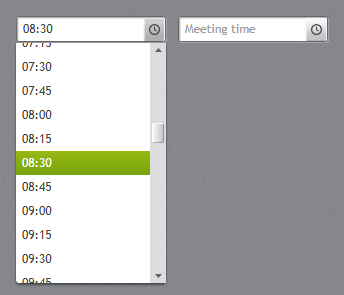
jp-time-picker is a text box with a clock button that lists the times of the day, every minute-step minutes. You can also type a time.
<jp-time-picker selected-time="@(new TimeSpan(8, 30, 0))" name="Start" />
<jp-time-picker minute-step="30" watermark="Meeting time" />
<div class="jp-time-picker" data-jp-minute-step="15">
    <input class="jp-text-box" value="08:30" name="Start">
    <button type="button" class="jp-text-box-button jp-text-box-button--clock" tabindex="-1" aria-label="Choose a time"></button>
</div>
| Attribute | Default | Description |
|---|---|---|
selected-time | the time (TimeSpan) | |
minute-step | 15 | minutes between the times in the list |
watermark, name | the input posts the time as HH:mm (binds to TimeSpan and TimeOnly) |
Choosing a time raises jp-change with the text, such as "08:30".
ColorPicker
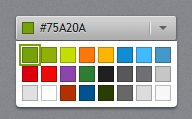
jp-color-picker is a combo-box-like button with a swatch and the hex value; it opens the theme palette. Choosing a colour raises change and jp-change with the colour, and the button’s value is the colour.
<jp-color-picker id="ChartColor" selected-color="#148CD1" />
<button type="button" class="jp-color-picker" id="ChartColor" data-selected-color="#148CD1" aria-haspopup="dialog">
    <span class="jp-color-picker__swatch"></span><span class="jp-color-picker__text"></span>
</button>
| Attribute | Default | Description |
|---|---|---|
selected-color | #75A20A | the colour, as #RRGGBB |
id |
data-jp-palette="#75A20A #FE770A #148CD1" on the button replaces the 24 colours of the palette. To let users pick their own accent:
document.getElementById('ChartColor').addEventListener('jp-change', e => JetPack.ThemeManager.changeAccent(e.detail));