Selection
CheckBox and RadioButton
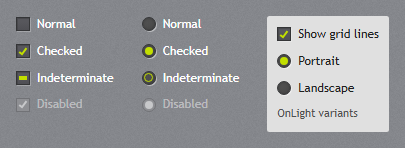
jp-check-box and jp-radio-button write a <label> around a native input, so they post, validate and take the keyboard as any check box. Checked boxes show the original theme’s check mark in the accent; the third state shows a dash. on-light="true" is the variant with dark text for light surfaces (tool bars, menus).
<jp-check-box asp-for="IsActive" content="Active" />
<jp-check-box content="Indeterminate" is-checked="null" />
<jp-radio-button group-name="Period" value="week" content="Week" is-checked="true" />
<jp-radio-button group-name="Period" value="month" content="Month" />
<jp-check-box content="Show grid lines" is-checked="true" on-light="true" />
<label class="jp-check-box"><input type="checkbox" id="IsActive" name="IsActive" value="true" checked="checked" />Active</label>
<label class="jp-check-box"><input data-jp-indeterminate="" type="checkbox" value="true" />Indeterminate</label>
<label class="jp-radio-button"><input type="radio" name="Period" value="week" checked="checked" />Week</label>
<label class="jp-check-box jp-check-box--on-light"><input type="checkbox" value="true" checked="checked" />Show grid lines</label>
| Attribute | Default | Description |
|---|---|---|
asp-for | jp-check-box: binds a bool (with ASP.NET Core’s hidden false input) | |
content | the text; without it the element’s content is used | |
is-checked | false | true, false or null (the indeterminate dash) |
name, value, id | without asp-for; value defaults to true (check box) or the content (radio button) | |
group-name | jp-radio-button: the radio buttons with the same group exclude each other (the name) | |
on-light | false | JetPack.Styles.CheckBox.OnLight: dark text for light surfaces |
Use the inputs’ own change event.
ToggleSwitch
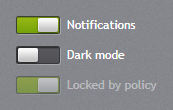
jp-toggle-switch is an on/off switch for a bool, posted like a check box. The knob slides, and the track turns the accent colour when it is on.
<jp-toggle-switch asp-for="Notifications">Notifications</jp-toggle-switch>
<jp-toggle-switch name="DarkMode" content="Dark mode" />
<jp-toggle-switch is-checked="true" is-enabled="false">Locked by policy</jp-toggle-switch>
<label class="jp-toggle-switch"><input role="switch" type="checkbox" id="Notifications" name="Notifications" value="true" />Notifications</label>
| Attribute | Default | Description |
|---|---|---|
asp-for | binds a bool | |
content | the text; without it the element’s content is used | |
is-checked | false | on |
name, id | without asp-for (posts true when on) |
Slider
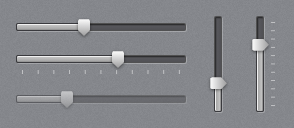
jp-slider has the JetPack track, the accent fill and the glossy thumb. Drag the thumb, click the track, or use the keys: arrows (small-change), Page Up/Down (large-change), Home and End. orientation="Vertical" stands it up; give it a height.
<jp-slider value="4" maximum="10" label="Volume" />
<jp-slider value="6" maximum="10" tick-placement="BottomRight" tick-frequency="1" is-snap-to-tick-enabled="true" name="Level" />
<jp-slider orientation="Vertical" value="3" maximum="10" style="height: 96px" />
<div class="jp-slider" role="slider" aria-valuemin="0" aria-valuemax="10" aria-valuenow="6" aria-orientation="horizontal"
     data-jp-ticks="1" data-jp-snap="true">
    <div class="jp-slider__track"></div><div class="jp-slider__fill"></div>
    <div class="jp-slider__ticks"></div><div class="jp-slider__thumb"></div>
    <input type="hidden" name="Level">
</div>
| Attribute | Default | Description |
|---|---|---|
value | 0 | the value |
minimum, maximum | 0, 10 | the range |
small-change, large-change | range ÷ 100, ÷ 10 | the steps of the arrow keys and Page Up/Down |
orientation | Horizontal | Horizontal or Vertical |
tick-placement | None | BottomRight draws ticks under (or right of) the track |
tick-frequency | 1 | the distance between ticks |
is-snap-to-tick-enabled | false | the value moves from tick to tick |
name | adds a hidden input with the value | |
label | text for screen readers (aria-label) |
While the value changes the slider raises input and jp-change with the number; change follows when the drag or key press ends.
RangeSlider
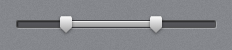
jp-range-slider has two thumbs, for a lower and an upper value. Tab moves from the lower thumb to the upper one. It takes the attributes of jp-slider, with lower-value and upper-value in place of value:
<jp-range-slider minimum="0" maximum="10000" lower-value="2500" upper-value="7000" small-change="100" name="Price" label="Price" />
<div class="jp-range-slider" role="slider" aria-valuemin="0" aria-valuemax="10000" aria-valuenow="7000" data-jp-lower-value="2500" data-jp-small-change="100" …>
    …
    <input type="hidden" name="Price.LowerValue"><input type="hidden" name="Price.UpperValue">
</div>
name posts two values, <name>.LowerValue and <name>.UpperValue, which bind to a class with those two properties. jp-change gives { lowerValue, upperValue }.
Rating

jp-rating is a row of stars. Clicking a star sets the value, the stars follow the mouse, and the arrow keys change it by one. is-read-only="true" only shows the value.
<jp-rating value="4" />
<jp-rating value="2" maximum="10" />
<jp-rating value="3" is-read-only="true" />
<span class="jp-rating" style="--value: 4; --max: 5;" role="slider" aria-valuemin="0" aria-valuemax="5" aria-valuenow="4" aria-label="Rating" data-jp-input=""></span>
<span class="jp-rating" style="--value: 3; --max: 5;" role="img" aria-label="3 of 5"></span>
| Attribute | Default | Description |
|---|---|---|
value | 0 | the number of stars |
maximum | 5 | the number of stars in the row |
is-read-only | false | shows the value without input |
A change raises jp-change with the new value. The rating does not post; copy the value to a hidden input in the jp-change handler if a form needs it.