Getting started
Requirements
- An ASP.NET Core site on .NET 8 or later (MVC or Razor Pages) for the tag helpers.
- Any site at all for the CSS and the script alone: they have no dependencies.
- A browser with popovers and
<dialog>(Edge, Chrome, Firefox and Safari from 2024 on).
Add the package
dotnet add package JetPack.Web
Add the tag helpers in Views/_ViewImports.cshtml (or Pages/_ViewImports.cshtml). The using gives the enums (JetPackIconKind, ButtonStyle …) for C# code in the views:
@addTagHelper *, Microsoft.AspNetCore.Mvc.TagHelpers
@addTagHelper *, JetPack.Web
@using JetPack.Web.TagHelpers
The files are static web assets under _content/JetPack.Web/. They are served from the package by app.MapStaticAssets() or app.UseStaticFiles(), which every new site already calls.
Load the theme
In the layout’s <head>:
<link rel="stylesheet" href="~/_content/JetPack.Web/css/jetpack.css" asp-append-version="true" />
<script src="~/_content/JetPack.Web/js/jetpack.js" asp-append-version="true"></script>
asp-append-versionadds a hash of the file to the address, so browsers fetch the new file after you update the package.jetpack.jsbelongs in<head>withoutdeferorasync: it sets the stored accent, focus visuals and font size before the page is drawn, so the page does not flash green first. The controls themselves are set up onDOMContentLoaded.jetpack.cssis one file. Do not linkjetpack.src.cssor the files incss/controls/; they are the sources it is bundled from.
The window frame
JetPackWindow is the <body> of the page: give it the class jp-window and the rows below. The body then fills the browser window, and only .jp-window__content scrolls.
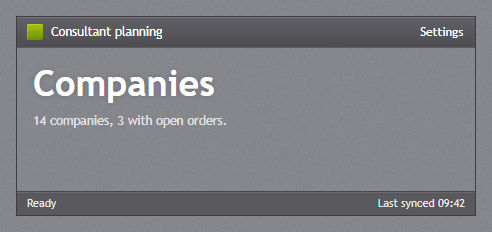
<body class="jp-window">
    <canvas class="jp-vignette" aria-hidden="true"></canvas>

    <header class="jp-title-bar">
        <span class="jp-title-bar__icon"></span>
        <span class="jp-title-bar__title">Contoso Staffing</span>
        <div class="jp-window-commands">
            <button type="button" data-jp-open="settings">Settings</button>
        </div>
    </header>

    <div class="jp-window__body">
        <main class="jp-window__content">
            @RenderBody()
        </main>
    </div>

    <jp-status-bar>
        <jp-status-bar-item>Ready</jp-status-bar-item>
    </jp-status-bar>
</body>
| Part | What it is |
|---|---|
body.jp-window | the window: a grid of title bar, body and status bar, as tall as the browser |
canvas.jp-vignette | the dark edges of the window, drawn and dithered by jetpack.js (leave it out for none) |
header.jp-title-bar | the title bar; __icon is the accent square, __title the text |
.jp-window-commands | the buttons and links of the title bar (RightWindowCommands); the last one goes to the right |
.jp-window__body | the row between title bar and status bar, a flex row for a navigation pane and the content |
.jp-window__content | the page; it scrolls on its own |
.jp-status-bar | the status bar at the bottom (optional) |
Without jp-window, the body still gets the texture, the fonts and the text colour, and the controls work anywhere on it. The window page has the title bar modes, flyouts and dialogs, and HamburgerMenu shows the navigation pane that goes into .jp-window__body.
Write the controls
The tag helpers are named after the WPF controls, and their attributes are the WPF property names in kebab case. The enums have the WPF values:
<jp-text-block text-block-style="Heading1" text="Companies" />
<jp-text-box asp-for="Name" watermark="Search…" clear-text-button="true" />
<jp-combo-box asp-for="City" asp-items="Model.Cities" watermark="Choose a city" />
<jp-check-box asp-for="IsActive" content="Active" />
<jp-button button-style="Accent" type="submit">Save</jp-button>
Every tag helper writes plain HTML with JetPack classes, so you can also write that HTML yourself. Each control’s section shows both. Your own class, style, id and other attributes stay on the element, so Tailwind classes go straight on the tag helper:
<jp-combo-box selected-index="0" class="w-48">…</jp-combo-box>
asp-for works on jp-text-box, jp-password-box, jp-numeric-up-down, jp-combo-box, jp-check-box and jp-toggle-switch: the name, id, value and validation attributes come from the model, as with ASP.NET Core’s own input tag helper, and fields that failed validation get the JetPack error look (see Validation).
Tailwind and other utility CSS
Tailwind (or any other utility CSS) does the layout: grids, gaps, widths and breakpoints, as the StackPanels and Grids in XAML. The JetPack classes only give the controls their look, so the two do not get in each other’s way.
Load jetpack.css before Tailwind. Its first rule is @layer theme, base, jetpack-base, components, utilities;, which fixes the order of the layers, so Tailwind’s utilities win over the JetPack classes and class="w-48" sets the width of a combo box.
With the Tailwind CLI, keep the <link> to jetpack.css above the stylesheet Tailwind writes, and import a copy of jetpack.tailwind.css (from the package’s staticwebassets/css folder) after Tailwind in your input file:
@import "tailwindcss";
@import "./jetpack.tailwind.css";
jetpack.tailwind.css maps the JetPack tokens to Tailwind theme variables, so utilities such as text-jp-soft, bg-jp-panel, border-jp-panel-border, shadow-jp and font-jp-mono follow the theme and the accent. The browser build of Tailwind cannot import files; the demo and the sample copy its @theme block into a <style type="text/tailwindcss"> element instead.
Without Razor
The CSS and the script work on any site (static HTML, React, Vue, a PHP site …). Copy jetpack.css, jetpack.js and the img/ folder from the package’s staticwebassets folder, or from src/JetPack.Web/wwwroot in the repository, and write the markup each section shows under HTML. Controls that a script adds after the page has loaded are set up with:
JetPack.init(container); // sets up the controls inside container (default: the whole page)
Text colour on the texture
The page text is white (--jp-text), as in the WPF theme. Use --jp-text-soft (80% white) and --jp-text-dim (50%) for secondary text, and the text styles for headings. Light surfaces (text boxes, menus, the light title bar) set their own dark text.
Next steps
- Theme and accent: switch the accent, or make one from your brand colour.
- Window and dialogs: flyouts, dialogs and the title bar modes.
- Demo and samples: the web demo shows every control; the MVC sample is a small admin site to copy from.