Typography
Fonts
The theme uses Trebuchet MS, which ships with Windows and macOS, with Segoe UI and the browser’s sans-serif as fallbacks. The sizes are those of the WPF library:
| Custom property | Value | Used for |
|---|---|---|
--jp-font-family | Trebuchet MS, Segoe UI, sans-serif | the page and all controls |
--jp-font-family-heading | Trebuchet MS, Segoe UI, sans-serif | headings |
--jp-font-family-mono | Consolas, Cascadia Mono, Courier New, monospace | code, keys |
--jp-font-size-control | 12px | controls (ThemeManager.controlFontSize) |
--jp-font-size-small | 11px | tool tips, status bar, captions |
--jp-font-size-default | 12.5px | the page (body) |
--jp-font-size-content | 13px | body text |
--jp-font-size-navigation | 15px | navigation and strip tab headers |
To use another typeface, set the two family properties after jetpack.css:
:root {
  --jp-font-family: "Segoe UI", sans-serif;
  --jp-font-family-heading: "Segoe UI", sans-serif;
}
Text styles
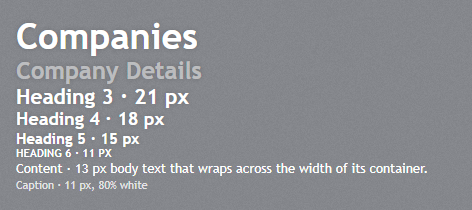
h1–h6 get the JetPack heading styles by themselves. jp-text-block writes the right element for each JetPack.Styles.TextBlock.* style, and the classes give the look to any element:
text-block-style | Element and class | Size | Notes |
|---|---|---|---|
Heading1 | <h1 class="jp-text-block--heading1"> | 36px, bold | page titles; all headings have a soft glow |
Heading2 | <h2 class="jp-text-block--heading2"> | 24px, bold | 50% white, for section titles (“Company Details”) |
Heading3 | <h3 class="jp-text-block--heading3"> | 21px, bold | |
Heading4 | <h4 class="jp-text-block--heading4"> | 18px, bold | |
Heading5 | <h5 class="jp-text-block--heading5"> | 15px, bold | column and group titles |
Heading6 | <h6 class="jp-text-block--heading6"> | 11px, bold | |
Content | <p class="jp-text-block--content"> | 13px | white body text |
Caption | <p class="jp-text-block--caption"> | 11px | 80% white |
<jp-text-block text-block-style="Heading1" text="Companies" />
<jp-text-block text-block-style="Heading2">Company Details</jp-text-block>
<jp-text-block text-block-style="Caption" text="Updated 10/26/2026" />
<h1 class="jp-text-block--heading1">Companies</h1>
<h2 class="jp-text-block--heading2">Company Details</h2>
<p class="jp-text-block--caption" style="margin:0;">Updated 10/26/2026</p>
| Attribute | Description |
|---|---|
text-block-style | Default (a plain <p>), Heading1–Heading6, Content, Caption |
text | the text; without it the element’s content is used |
The class is useful when the heading level and the look differ, for example an <h2> that looks like Heading5: <h2 class="jp-text-block--heading5">. Headings have no margin; space them with your own classes. jp-label is the form label (see Label).
Icons
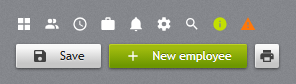
The icons of jp:JetPackIcon in WPF, as an SVG sprite (img/icons.svg, one <symbol> per icon). An icon takes the text colour (currentColor) and is 16×16 by default, 18×18 in jp-hamburger-menu.
<jp-icon kind="ViewGrid" />
<jp-icon kind="Bell" label="Notifications" />   @* label: for an icon that stands alone *@
<jp-button button-style="Square" tool-tip="Print">
    <jp-icon kind="Printer" style="color: var(--jp-control-glyph-dark)" />
</jp-button>
<jp-button button-style="Accent"><jp-icon kind="Plus" class="mr-1.5" />New employee</jp-button>
<svg class="jp-icon" aria-hidden="true" focusable="false"><use href="/_content/JetPack.Web/img/icons.svg#view-grid"></use></svg>
<svg class="jp-icon" role="img" aria-label="Notifications" focusable="false"><use href="/_content/JetPack.Web/img/icons.svg#bell"></use></svg>
| Attribute | Description |
|---|---|
kind | the icon, a JetPackIconKind (the same names as in WPF: ViewGrid, AccountMultiple …) |
label | text for screen readers; without it the icon is hidden from them (aria-hidden) |
The tag helpers (jp-icon, and the icon of jp-menu-item and jp-hamburger-menu-item) put the request’s path base in front of the sprite’s address, so the icons also load when the site runs under a sub-path (app.UsePathBase("/hr") gives /hr/_content/JetPack.Web/img/icons.svg#bell). Write that prefix yourself in plain HTML.
In the sprite the icons have their MDI names in kebab case (ViewGrid → #view-grid). Size an icon with width and height (or Tailwind’s size-6); colour it with color. On light buttons use var(--jp-control-glyph-dark), as in WPF.
The Icons tab of the web demo shows the whole set; clicking an icon copies its tag helper.
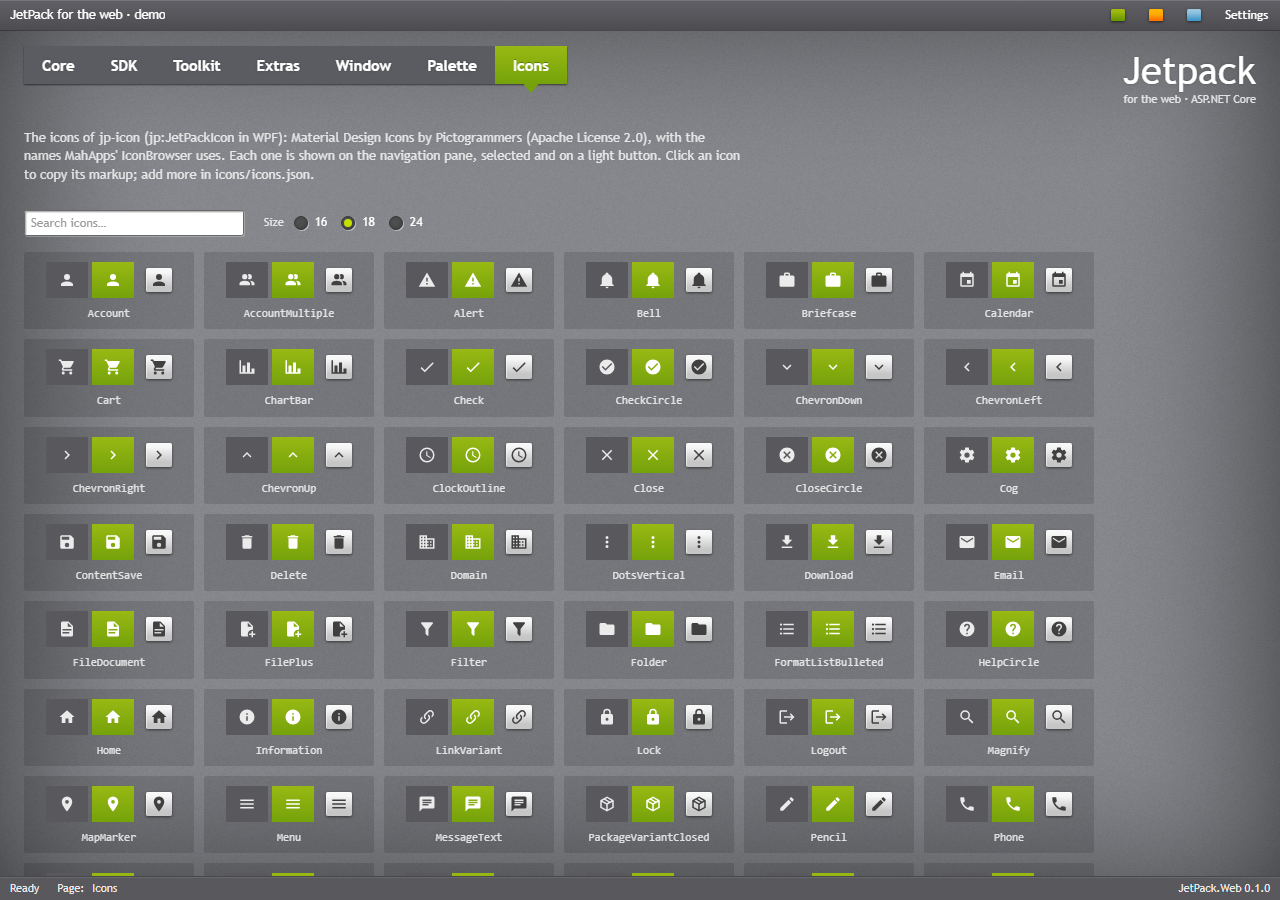
The icons are Material Design Icons (Apache License 2.0). The set is the one listed in icons/icons.json, shared with the WPF library; to add an icon, put its MDI name in that file and run python tools/generate_icons.py --fetch, which writes the sprite and the JetPackIconKind enum of both libraries.