Lists and data
The lists select one item with the mouse and with the arrow keys, Home and End. The selected item has aria-selected="true", gets the accent selection, and the list raises jp-change with the selected element (the item, or the <tr> of a grid). With name, a hidden input posts the selected item’s value (or its text).
ListBox
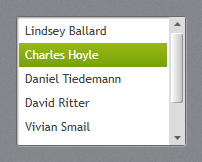
jp-list-box is the white list with the JetPack scroll bar. Give it a height to make it scroll.
<jp-list-box selected-index="1" name="Employee" class="h-32">
    <jp-list-box-item content="Lindsey Ballard" value="17" />
    <jp-list-box-item content="Charles Hoyle" value="23" />
    <jp-list-box-item value="31"><b>Daniel</b> Tiedemann</jp-list-box-item>
</jp-list-box>
<div class="jp-list-box h-32" role="listbox" tabindex="0" data-jp-name="Employee">
    <div class="jp-list-box-item" role="option" aria-selected="false" data-value="17">Lindsey Ballard</div>
    <div class="jp-list-box-item" role="option" aria-selected="true" data-value="23">Charles Hoyle</div>
    <div class="jp-list-box-item" role="option" aria-selected="false" data-value="31"><b>Daniel</b> Tiedemann</div>
    <input type="hidden" name="Employee" value="23">
</div>
| Attribute | Default | Description |
|---|---|---|
selected-index | -1 | the selected item |
name | posts the selected value | |
dark | false | the dark list for flyouts and dark panels |
jp-list-box-item takes content (or the element’s content), value and is-enabled.
ListView with GridView
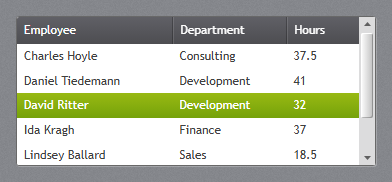
jp-list-view is a ListView with a GridView: a white list with column headers, filled from items as ItemsSource. Each jp-grid-view-column shows one property.
<jp-list-view items="Model.Timesheets" selected-index="2" height="150">
    <jp-grid-view-column header="Employee" display-member-binding="Employee" width="150" />
    <jp-grid-view-column header="Department" display-member-binding="Department" width="110" />
    <jp-grid-view-column header="Hours" display-member-binding="Hours" width="70" />
</jp-list-view>
<div class="jp-list-view" style="height:150px;" tabindex="0">
    <table data-jp-selection="single">
        <thead><tr><th style="width:150px">Employee</th><th style="width:110px">Department</th><th style="width:70px">Hours</th></tr></thead>
        <tbody>
            <tr aria-selected="false"><td>Charles Hoyle</td><td>Consulting</td><td>37.5</td></tr>
            …
        </tbody>
    </table>
</div>
It takes the attributes of jp-data-grid below; the column takes display-member-binding in place of binding.
TreeView
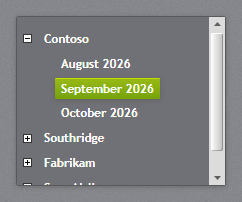
jp-tree-view is the dark tree with bold items. An item with children gets the [+]/[−] box, which is a <details>, so it folds without script; a click on the text selects the item without folding it.
<jp-tree-view name="Month" class="h-44">
    <jp-tree-view-item header="Contoso" is-expanded="true">
        <jp-tree-view-item header="August 2026" value="2026-08" />
        <jp-tree-view-item header="September 2026" value="2026-09" is-selected="true" />
    </jp-tree-view-item>
    <jp-tree-view-item header="Fabrikam">
        <jp-tree-view-item header="May 2026" value="2026-05" />
    </jp-tree-view-item>
</jp-tree-view>
<ul class="jp-tree-view h-44" role="tree" data-jp-name="Month">
    <li><details open>
        <summary><span class="jp-tree-view__item" role="treeitem" aria-selected="false">Contoso</span></summary>
        <ul role="group">
            <li><span class="jp-tree-view__item" role="treeitem" aria-selected="false" data-value="2026-08">August 2026</span></li>
            <li><span class="jp-tree-view__item" role="treeitem" aria-selected="true" data-value="2026-09">September 2026</span></li>
        </ul>
    </details></li>
    …
</ul>
| Attribute | Description |
|---|---|
name | jp-tree-view: posts the selected item’s value |
header | jp-tree-view-item: the text |
is-expanded | jp-tree-view-item: open when the page loads |
is-selected | jp-tree-view-item: the selected item |
value | jp-tree-view-item: the posted value |
DataGrid
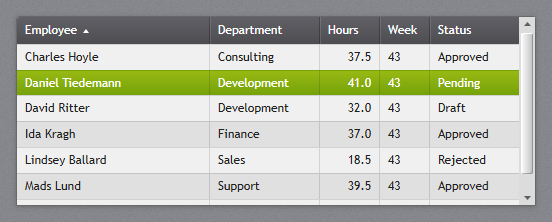
jp-data-grid is a read-only grid with the dark JetPack header, alternating rows and the accent selection, filled from items. With a height the rows scroll under a sticky header.
<jp-data-grid items="Model.Timesheets" selected-index="1" height="190">
    <jp-data-grid-text-column header="Employee" binding="Employee" sort-direction="Ascending" />
    <jp-data-grid-text-column header="Department" binding="Department" width="110" />
    <jp-data-grid-text-column header="Hours" binding="Hours" string-format="N1" width="60" horizontal-alignment="Right" />
    <jp-data-grid-text-column header="Week" binding="Week" width="50" />
</jp-data-grid>
<div class="jp-data-grid-host" style="height:190px;">
    <table class="jp-data-grid" data-jp-selection="single">
        <thead><tr>
            <th aria-sort="ascending">Employee</th>
            <th style="width:110px">Department</th>
            <th style="width:60px">Hours</th>
            <th style="width:50px">Week</th>
        </tr></thead>
        <tbody>
            <tr aria-selected="false"><td>Charles Hoyle</td><td>Consulting</td><td class="jp-data-grid__number">37.5</td><td>43</td></tr>
            …
        </tbody>
    </table>
</div>
| Attribute | Default | Description |
|---|---|---|
items | the rows, any IEnumerable (ItemsSource) | |
selected-index | -1 | the selected row |
height | height in pixels; the rows scroll under the header | |
selection-mode | Single | Single or None |
| Column attribute | Description |
|---|---|
header | the header text |
binding | the property of each item to show |
width | a pixel width; * or nothing for the rest |
string-format | a .NET format, such as N1 or d, in the request’s culture |
horizontal-alignment | Right for numbers |
sort-direction | Ascending or Descending: the sort arrow in the header |
The grid does not sort or edit; sort on the server and show the direction with sort-direction. For rows that open a page, write the table yourself (or in a loop) and give each <tr> a data-href: a click opens the address, Ctrl+click opens it in a new tab, and links or buttons in the row still work on their own.
<div class="jp-data-grid-host">
    <table class="jp-data-grid">
        <thead><tr><th>Name</th><th>Title</th></tr></thead>
        <tbody>
        @foreach (var e in Model.Employees)
        {
            <tr data-href="@Url.Action("Edit", new { e.Id })"><td>@e.Name</td><td>@e.Title</td></tr>
        }
        </tbody>
    </table>
</div>
Calendar
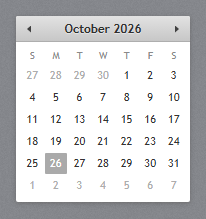
jp-calendar is the month view with the year and decade views behind the header: click the title to go up a level, and the arrows to move a month (or a year, a decade). Today is marked grey and the selected date green. The arrow keys move between the days.
<jp-calendar selected-date="@DateTime.Today" />
<div class="jp-calendar" data-selected-date="2026-10-26"></div>
| Attribute | Description |
|---|---|
selected-date | the selected date |
display-date | the month shown first (default: the selected month, or this month) |
jetpack.js writes the header and the days. Choosing a day raises jp-change with a Date, and data-selected-date holds it as yyyy-MM-dd.
ScrollViewer and ScrollBar
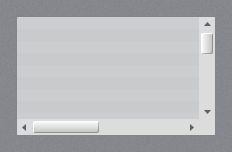
Every scroll bar on the page has the JetPack look in Chromium browsers (Edge, Chrome): the light track, the glossy thumb and the arrow buttons. Firefox gets the colours only. jp-scroll-viewer is a scrolling box with WPF’s scroll bar settings:
<jp-scroll-viewer horizontal-scroll-bar-visibility="Auto" class="h-40">…</jp-scroll-viewer>
<div class="jp-scroll-viewer h-40" style="overflow-x:auto;overflow-y:auto;" tabindex="-1">…</div>
| Attribute | Default | Description |
|---|---|---|
horizontal-scroll-bar-visibility | Disabled | Auto, Visible, Hidden or Disabled |
vertical-scroll-bar-visibility | Auto | the same |
thin | false | JetPack.Styles.ScrollViewer.Thin, below |
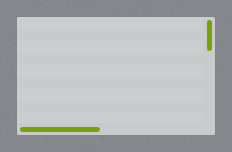
thin="true" gives the thin accent bar of JetPack.Styles.ScrollViewer.Thin: it shows while the box scrolls or the mouse is near its edge, and hides 1.5 s later.