Window and dialogs
Window
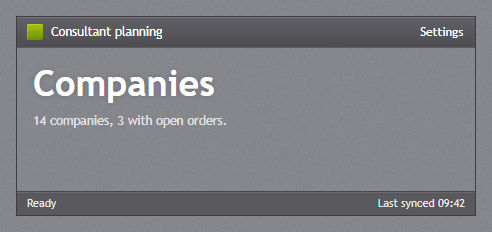
On the web the page is the window: body.jp-window is JetPackWindow, with a title bar, a body for the navigation pane and the content, and a status bar. Getting started lists its parts. The frame has no tag helper; write it in the layout:
<body class="jp-window">
    <canvas class="jp-vignette" aria-hidden="true"></canvas>
    <header class="jp-title-bar">
        <span class="jp-title-bar__icon"></span>
        <span class="jp-title-bar__title">Consultant planning</span>
        <div class="jp-window-commands">
            <button type="button" data-jp-open="settings">Settings</button>
        </div>
    </header>
    <div class="jp-window__body">
        <main class="jp-window__content">…</main>
    </div>
    <jp-status-bar>
        <jp-status-bar-item>Ready</jp-status-bar-item>
        <jp-status-bar-item horizontal-alignment="Right">Last synced 09:42</jp-status-bar-item>
    </jp-status-bar>
</body>
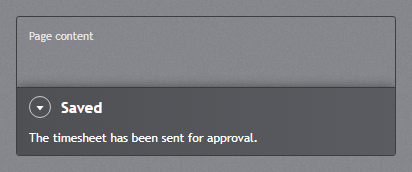
The window classes also work on any box, as in the picture: give it a height and the same rows.
Title bar modes
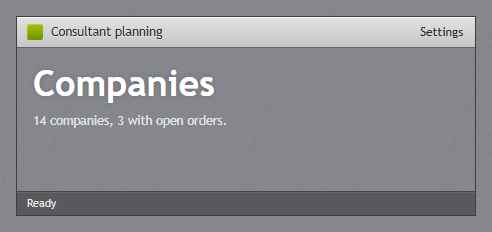
data-title-bar on the window is TitleBarMode:
data-title-bar | Look |
|---|---|
| (none) | the dark title bar (default) |
light | the light, embossed bar of the original theme’s headers |
texture | no bar of its own: the texture and the vignette run up under the title, which gets a soft glow |
<body class="jp-window" data-title-bar="light">
Window commands
.jp-window-commands holds the buttons and links of the title bar (RightWindowCommands). They are flat, in the title colour, and light up when the mouse is over them. The last group in the title bar goes to the right; a group before the title is LeftWindowCommands. Anything fits in them, for example a badged bell:
<div class="jp-window-commands">
    <a href="/timesheets"><span class="jp-badged"><jp-icon kind="Bell" /><span class="jp-badged__badge">4</span></span></a>
    <button type="button" data-jp-open="settings">Settings</button>
</div>
Vignette
<canvas class="jp-vignette"> draws the dark edges of the window. jetpack.js draws it as Controls/Vignette.cs does in WPF, dithered so the gradient does not band, and draws it again when the window changes size. Leave the canvas out, or hide it, for a window without one.
Flyouts
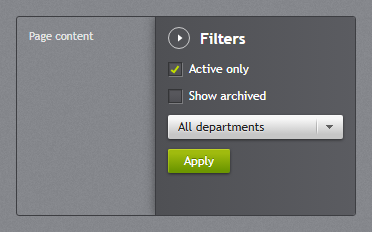
jp-flyout is a panel that slides in from an edge of the window and lies over the content. Put it in the window (body.jp-window), or in any box with the class jp-flyout-host. In the window, the flyouts start below the title bar.
<jp-flyout id="settings" header="Settings" width="300">
    <jp-check-box content="Active only" is-checked="true" />
    <jp-button button-style="Accent" data-jp-close>Apply</jp-button>
</jp-flyout>

<button type="button" data-jp-open="settings">Settings</button>
<aside class="jp-flyout" id="settings" data-position="right" aria-label="Settings" style="width:300px;">
    <header class="jp-flyout__header">
        <button type="button" class="jp-flyout__close" data-jp-close aria-label="Close" data-jp-tool-tip="Close"></button>
        <span>Settings</span>
    </header>
    …
</aside>
| Attribute | Default | Description |
|---|---|---|
id | needed to open the flyout | |
header | the title next to the round close button | |
position | Right | Right, Left, Top or Bottom: the edge it slides in from |
width | 300 | width in pixels, for Left and Right |
is-open | false | open when the page loads |
is-closable | true | shows the close button |
is-auto-close-enabled | false | closes by itself after auto-close-interval |
auto-close-interval | 5000 | milliseconds; the timer starts again when the mouse leaves the flyout |
padding | 12px 14px | inner spacing, as CSS |
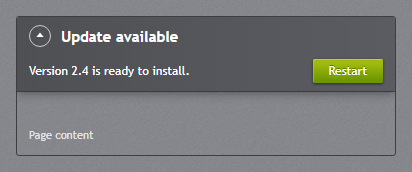
Opening and closing:
data-jp-open="id"on any element opens the flyout, or closes it when it is already open (setdata-jp-toggle-open="false"to only open).data-jp-closeon an element inside closes it; so does Esc (the top flyout first).- From script:
JetPack.openFlyout('settings')andJetPack.closeFlyout('settings')(an id or the element). The flyout raisesjp-openandjp-close.
Dialogs
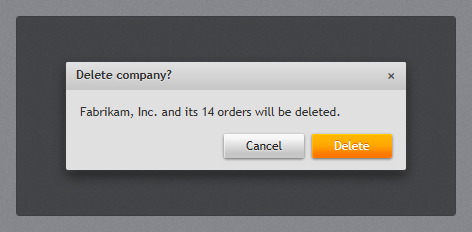
JetPackDialog and ShowMessageAsync are promises in jetpack.js. The dialog is a modal <dialog class="jp-dialog"> that dims the window below the title bar:
await JetPack.showMessage('Timesheet sent', 'Your timesheet has been sent for approval.');

const result = await JetPack.showDialog({
    title: 'Delete company?',
    content: 'Fabrikam, Inc. and its 14 orders will be deleted.',
    affirmativeText: 'Delete',
    negativeText: 'Cancel',
    affirmativeStyle: 'orange',
});
if (result === 'affirmative') { … }
| Option | Default | Description |
|---|---|---|
title | the header text | |
content | the message (plain text) | |
affirmativeText | OK | the text of the main button |
negativeText | a second button; without it the dialog has one button | |
affirmativeStyle | accent | the main button’s variant: accent, green, orange or blue |
The promise resolves to 'affirmative' or 'negative' (the second button, the × and Esc). The main button has the focus when the dialog opens.
A dialog of your own, with a form for example, is the same markup in the page:
<dialog class="jp-dialog" id="rename">
    <header class="jp-dialog__header"><span>Rename company</span><button type="button" data-jp-close aria-label="Close">×</button></header>
    <form class="jp-dialog__content" method="dialog">
        <jp-text-box name="Name" text="Fabrikam, Inc." />
        <div class="jp-dialog__buttons">
            <button class="jp-button" value="cancel">Cancel</button>
            <button class="jp-button jp-button--accent" value="ok">Rename</button>
        </div>
    </form>
</dialog>

<jp-button data-jp-open="rename">Rename…</jp-button>
data-jp-open opens a <dialog> with showModal(), and data-jp-close inside it closes it.
Differences from WPF
- The browser draws the window’s outer frame, so
JetPackWindow’s corner style, resize grip, Mica backdrop and minimise/maximise/close buttons have no web version. - Flyouts and dialogs need no flyout layer or overlay element: the flyout positions itself in its host, and the dialog uses the browser’s top layer.